Manage custom views for your website
Custom views let you focus on a specific area of your website rather than see all accessibility rule violations.
Use custom views to prioritize fixes in high-traffic website areas, or to help content editors focus on monitoring and maintaining their assigned area of a website.
| Experiment with a custom view by using the Filter option to first create a view, and then click Save view to convert the filter to a custom view. |
Before you start
-
You need to have the initial scan of your site complete before creating custom views.
-
Views that you create are shared with everyone who has access to your dashboard; they are not limited to your individual user account.
Create a custom view
To create a custom view of a subset of your website:
-
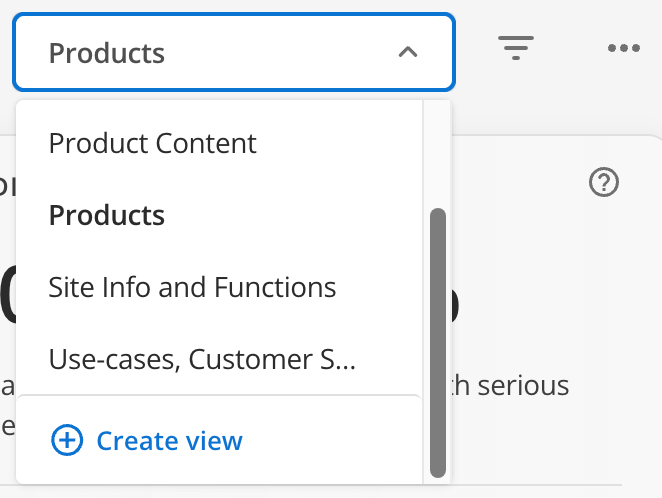
On your dashboard, select the dropdown menu option.
-
On the Step 1 of 2 screen, name your view concisely so it appears in the list of saved custom views.
-
On the Step 2 of 2 screen, define the scope by including or excluding URLs:
-
Click Include in scope or Exclude from scope depending on how you want to control your view.
-
Copy the desired website path.
-
Paste the path (excluding your top-level domain) into the subpath field.
-
Select Include child pages to include subpages in the scope.
-
-
Click Create to save.
-
Select View and then select the view name set in step 1 of 2.
Edit a custom view
To edit the scope of your custom view:
-
Open the Audit info menu and click Edit custom view.
-
Adjust the parameters described in Create a custom view and click Save view.
Delete a custom view
| Deleting a custom view removes all saved configuration and report data for all members of your organization. |
To delete a custom view:
-
Open the Audit info menu and click Edit custom view.
-
Click Delete view.
-
Read the warning and then click Delete to permanently remove the view and all its report data.
What’s next?
You can now see your accessibility health and rule violations only for that subsection of your website.
-
Key insights offer an at-a-glance overview of your accessibility health, and how many issues remain identified but unresolved.
-
Suggested fixes gives you a list of tasks you can do to improve your website’s accessibility score immediately.
-
Detailed results gives you compliance and issue severity summaries so you can keep track of site health at a glance.
-
All accessibility rules lists all accessibility rule violations that apply to your site.