Adding a layout to a content page
This section describes how to add a layout on a content page.
| The same process applies when using layouts on a content template. |
Prerequisites
-
You understand what layouts are and how to create them, as described in Layouts documentation.
-
You have at least one layout deployed to the DXP and available for use on your site.
Adding the layout
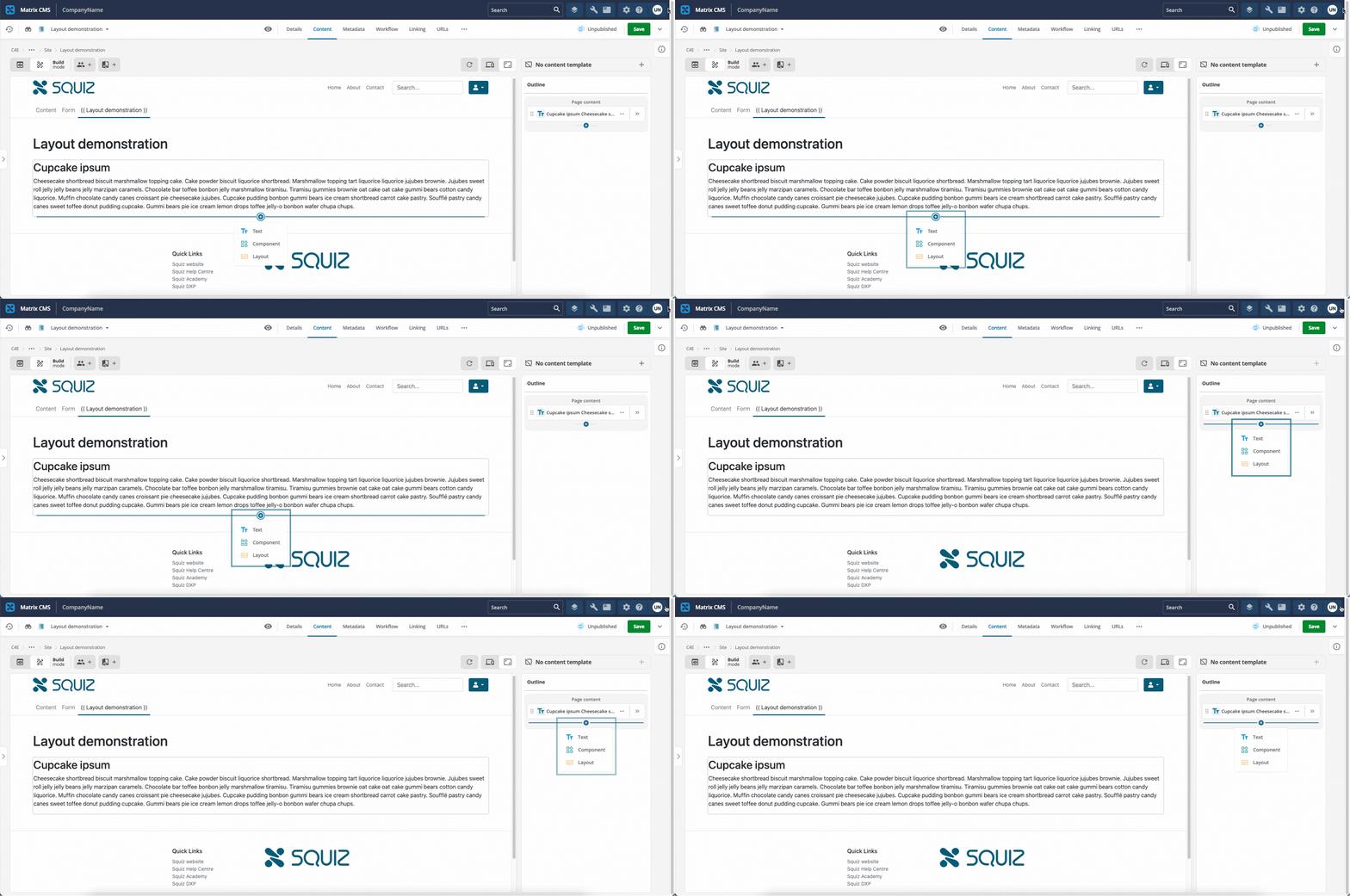
In the Page outline column or in the Preview column, select the block add icon (+) to add a text block, a component block, or a layout.
Selecting the layout
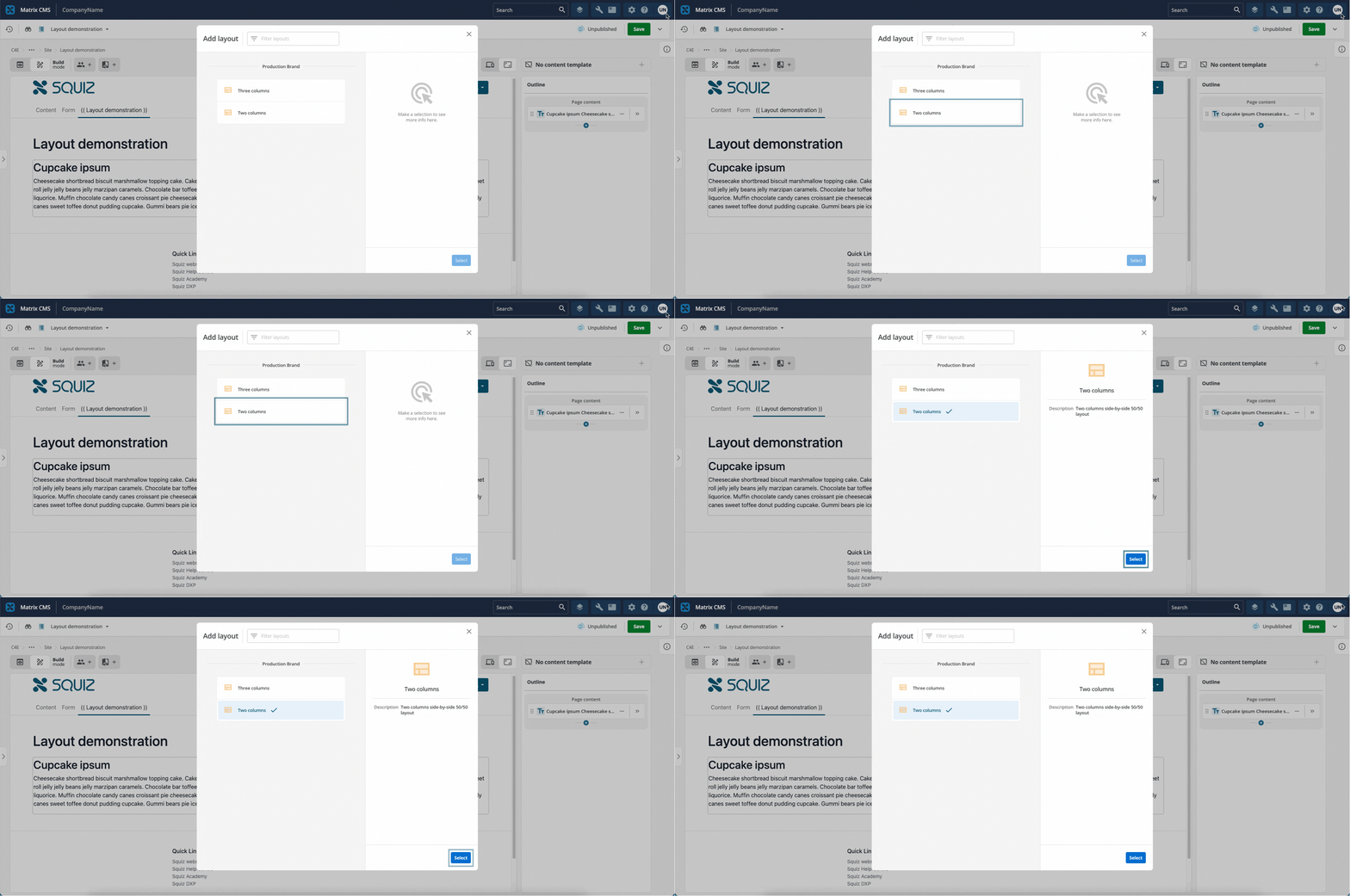
When adding a layout, the resource browser shows the available layouts under their component sets. Locate the required layout using the Filter layouts field.
Select the layout, then click Select.
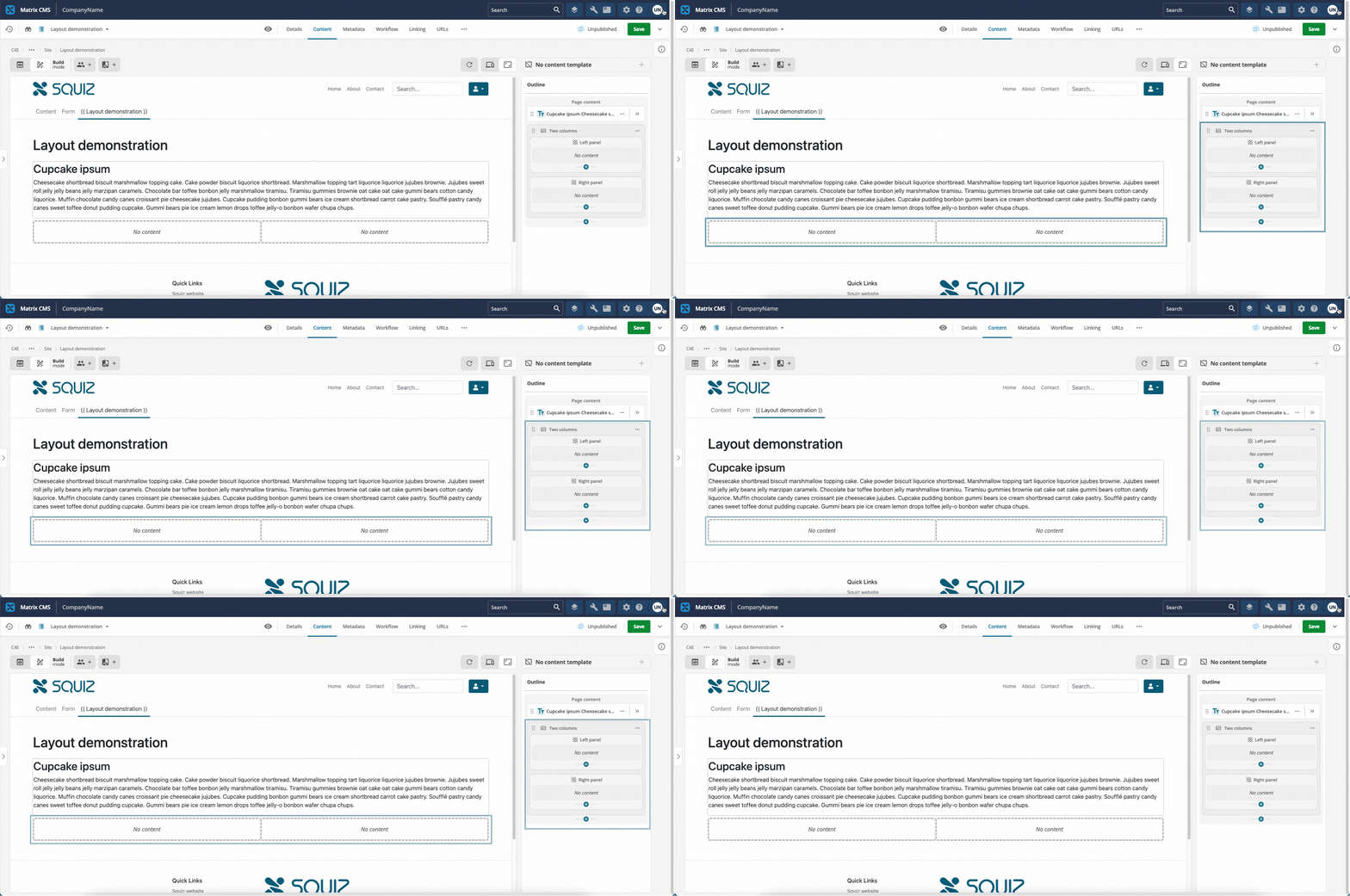
How the layout is shown in Page Builder
When the layout is added, it can be seen in both the Page outline column and the Preview column.
The layout zones are shown in the Preview column.
Each layout zone has a dashed border around it.
Hover the mouse cursor over the layout zone to show the same striped icon and name, along with the block add icon to add content blocks.