Rename a content item
When a content item is added to a content page or template, a default name is displayed in the Page outline column.
This section describes how you can rename text, components and layouts.
Before you start
Read About the editing experience to learn the Page Builder interface basics.
Steps
To customize the name of a content item:
-
Click the Rename command from the options menu.
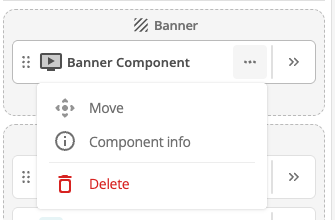 Figure 1. Rename command in options menu.
 -
This will open the Rename dialog where a new name can be set for the content item.
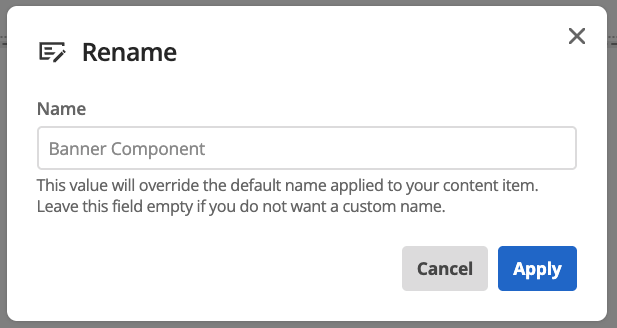 Figure 2. Rename dialog.
 -
Once applied, the new name will display in the page outline and in the edit panel header.
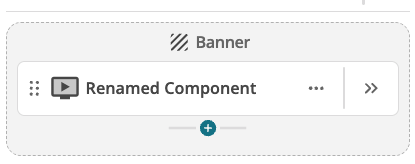 Figure 3. Content item renamed in page outline.
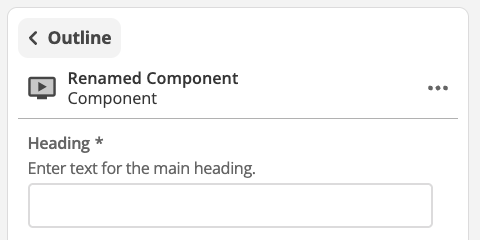 Figure 4. Content item renamed in edit panel outline.
 -
To revert to the default name for the content item, simply clear the name in the dialog and click apply.