Adding starter content to a content template
This section demonstrates how template authors can add starter content blocks to page-managed zones in a content template.
Before you start
-
Understand what starter content is and when to use it, as described in the starter content documentation.
-
You have created a content template and configured at least one page-managed zone.
Starter content feature restrictions
The following content restrictions apply:
- Layouts
-
Layouts cannot be added as starter content. Page editors can add layouts when the template is applied, if permitted by zone rules.
- Personalization
-
Personalization is not supported in starter content. Page editors can personalize content when the template is applied.
- Zone rules
-
Text and components must be allowed according to zone rules. If a block is not permitted, validation prevents saving the template.
Steps
-
In the Page outline column, locate the page-managed zone where you want to add starter content.
-
Click the purple + icon to open the content adder menu.
-
The menu presents two available options: Text and Component. Choose the option you want to add.
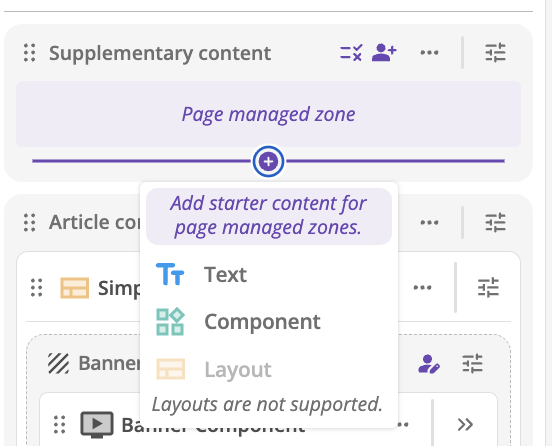 Figure 1. Adding starter content on a template.
 -
Make updates to content and/or component properties as desired. Fields can be left empty.
-
Repeat steps 2-4 until you have added the desired starter content for this zone.
-
Configure any rules for the zone.
-
Repeat for other page-managed zones.
-
Click Save to save the template.
|
Adding starter content to a page-managed zone is optional. A template author can leave the zone completely empty, allowing the page editor to populate it from scratch. |