Remove a component or text block from a page
You can delete components and text blocks from a page.
How to remove a content block
The Page outline column presents the page’s components and content blocks in rendered order.
And each presented component or block has an Options menu.
-
Options
When this control is clicked, a menu of component, layout, or text-block–specific options presents.
If a component is selected, clicking this option presents a menu with four available commands: Rename, Move, Component info and Delete.
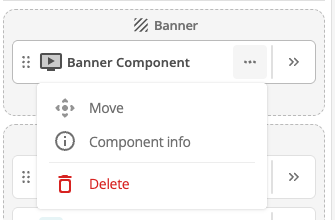 Figure 1. Options menu for components.
-
Selecting the Rename command presents the Rename dialog.
-
Selecting the Components info command presents the View component information dialog
-
Selecting the Delete command deletes the selected object.
If a layout is selected, clicking this option presents a menu with four available commands: Rename, Move, Layout info and Delete.
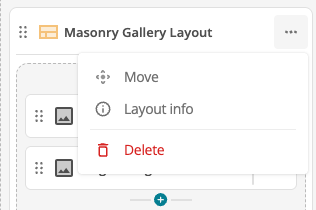 Figure 2. Options menu for layouts.
-
Selecting the Rename command presents the Rename dialog.
-
Selecting the Layout info command presents the Layout information dialog
-
Selecting the Delete command deletes the selected layout, and any content stored within its zones.
If a text block is selected, clicking this option presents a menu with three available commands: Rename, Move and Delete.
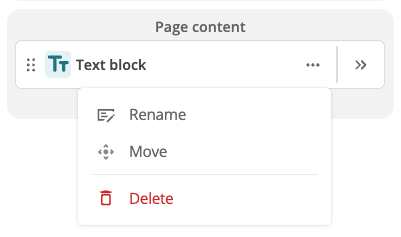 Figure 3. Options menu for text blocks.
-
Selecting the Rename command presents the Rename dialog.
-
Selecting the Delete command deletes the selected object.
There is no confirmation or warning dialog when the Delete command is selected.
Selecting the command deletes the object immediately.
-