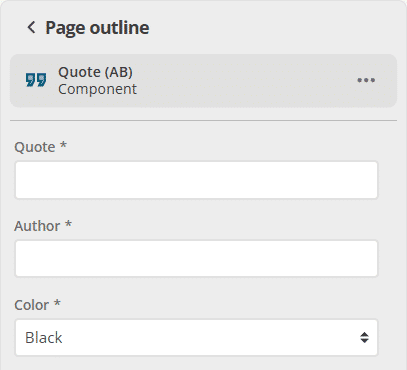
Inline editing
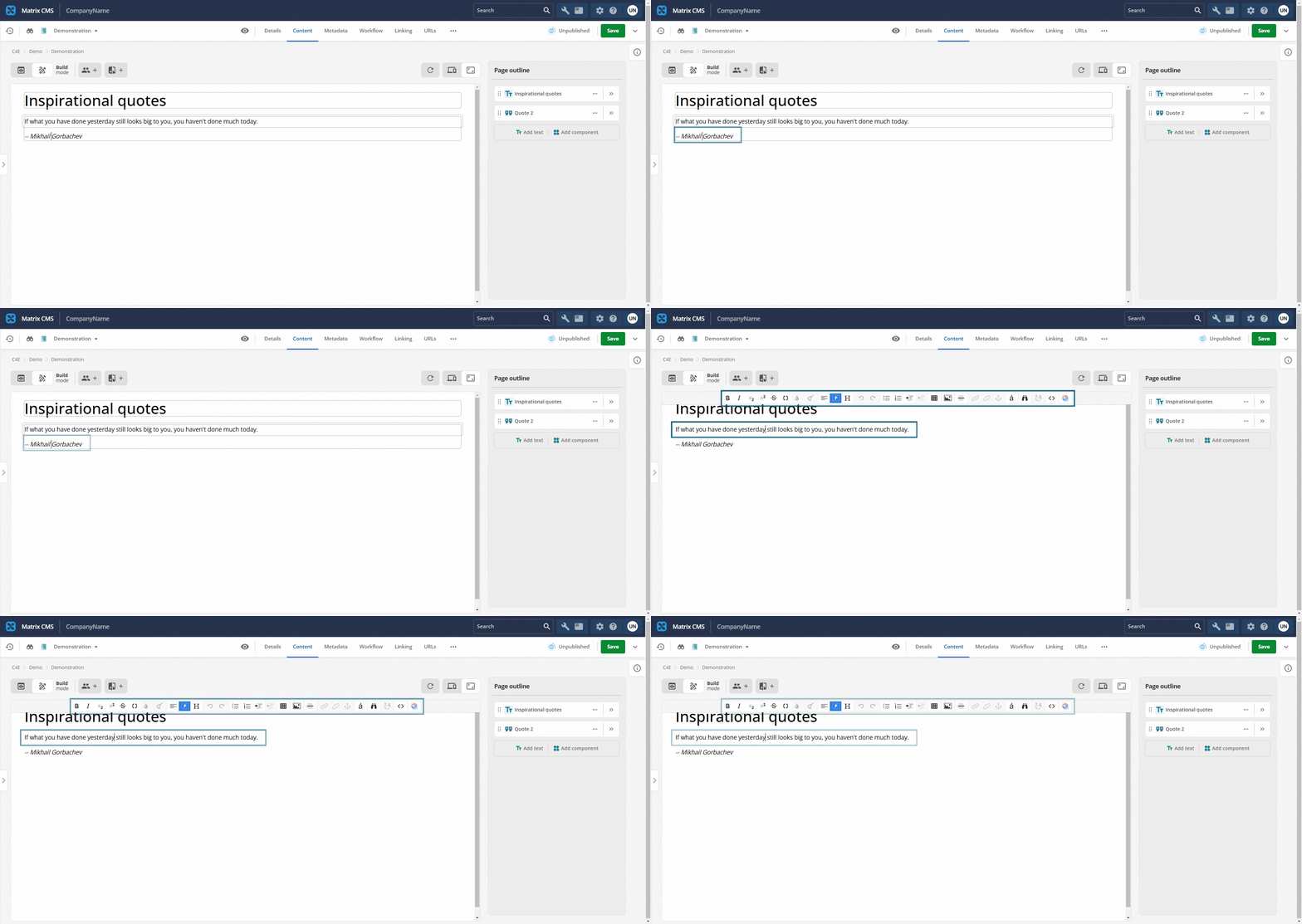
Editors can change text in the preview column and see updates immediately. They do not need to open the page outline column for the same text edits.
Properties of type number, integer, string, or FormattedText can all be configured to be inline editable.
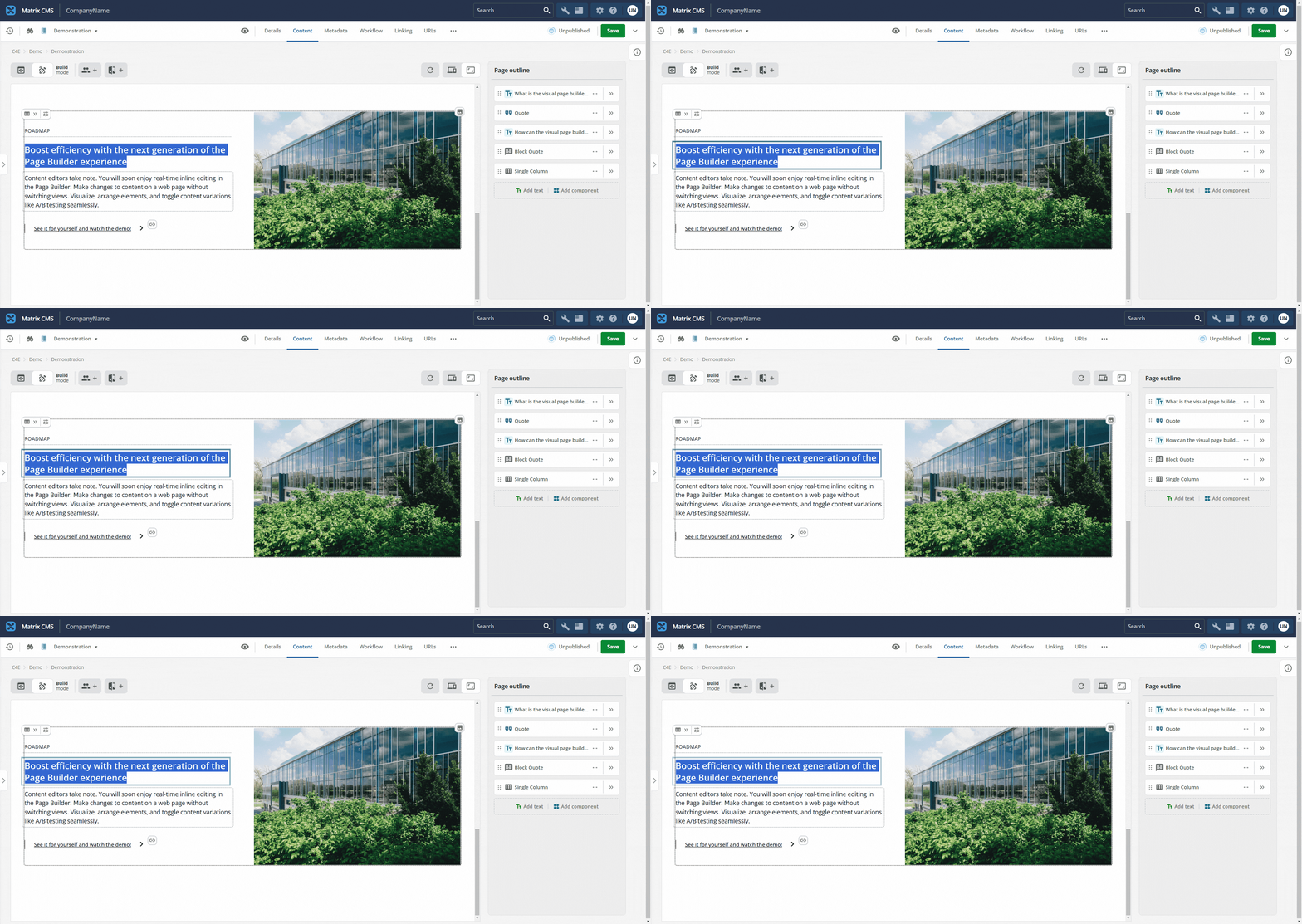
Properties of type SquizImage and SquizLink can also be configured to be inline editable.
These two options are known as inline actions.
They are configured the same way as other fields.
Editors select new images or links in the preview column for those types.
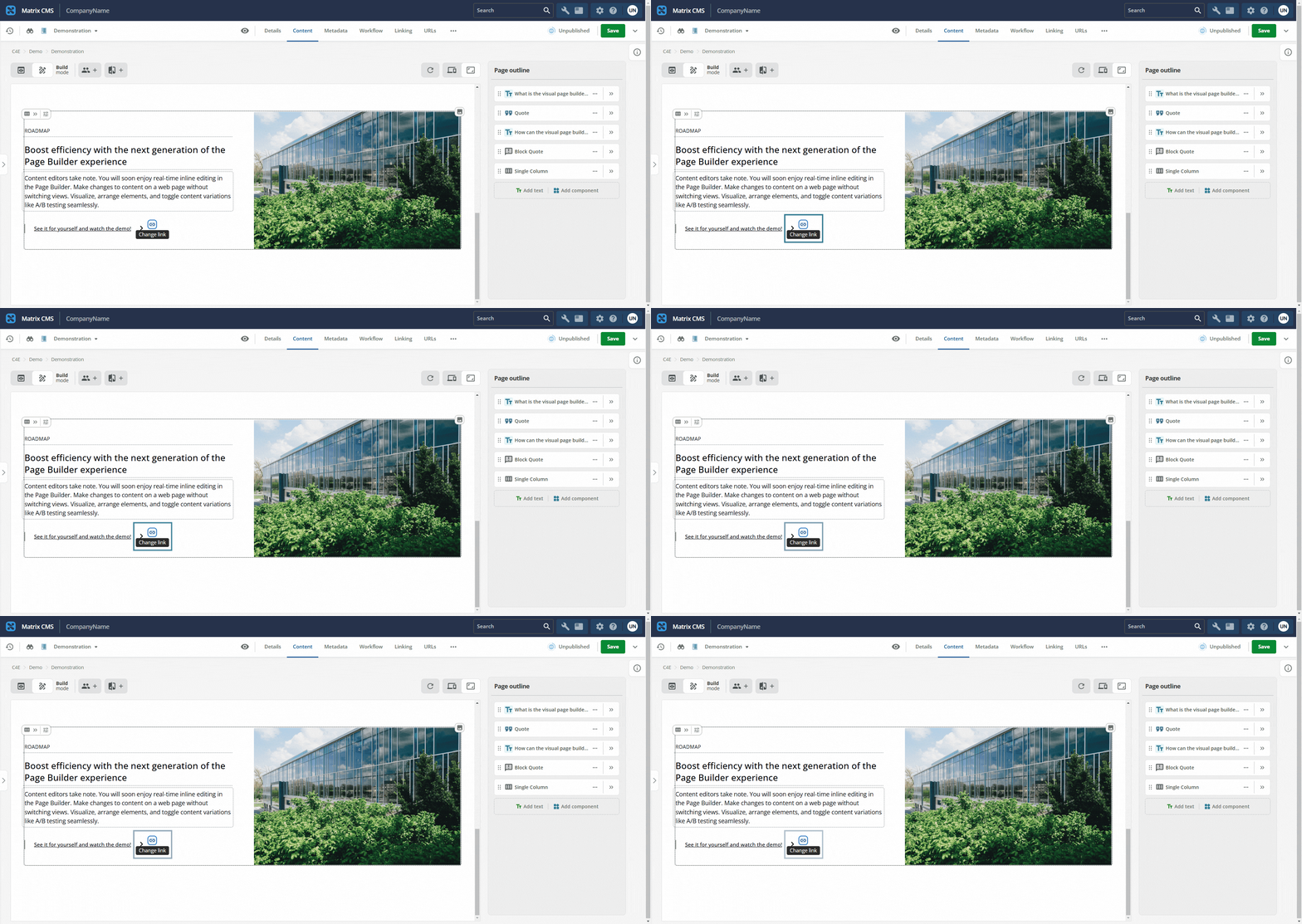
SquizLink in the preview.When a property is configured as inline editable, a visual indicator is visible.
A dotted line appears under fields that can be inline edited.
For a FormattedText field, a dotted rectangle appears around it.
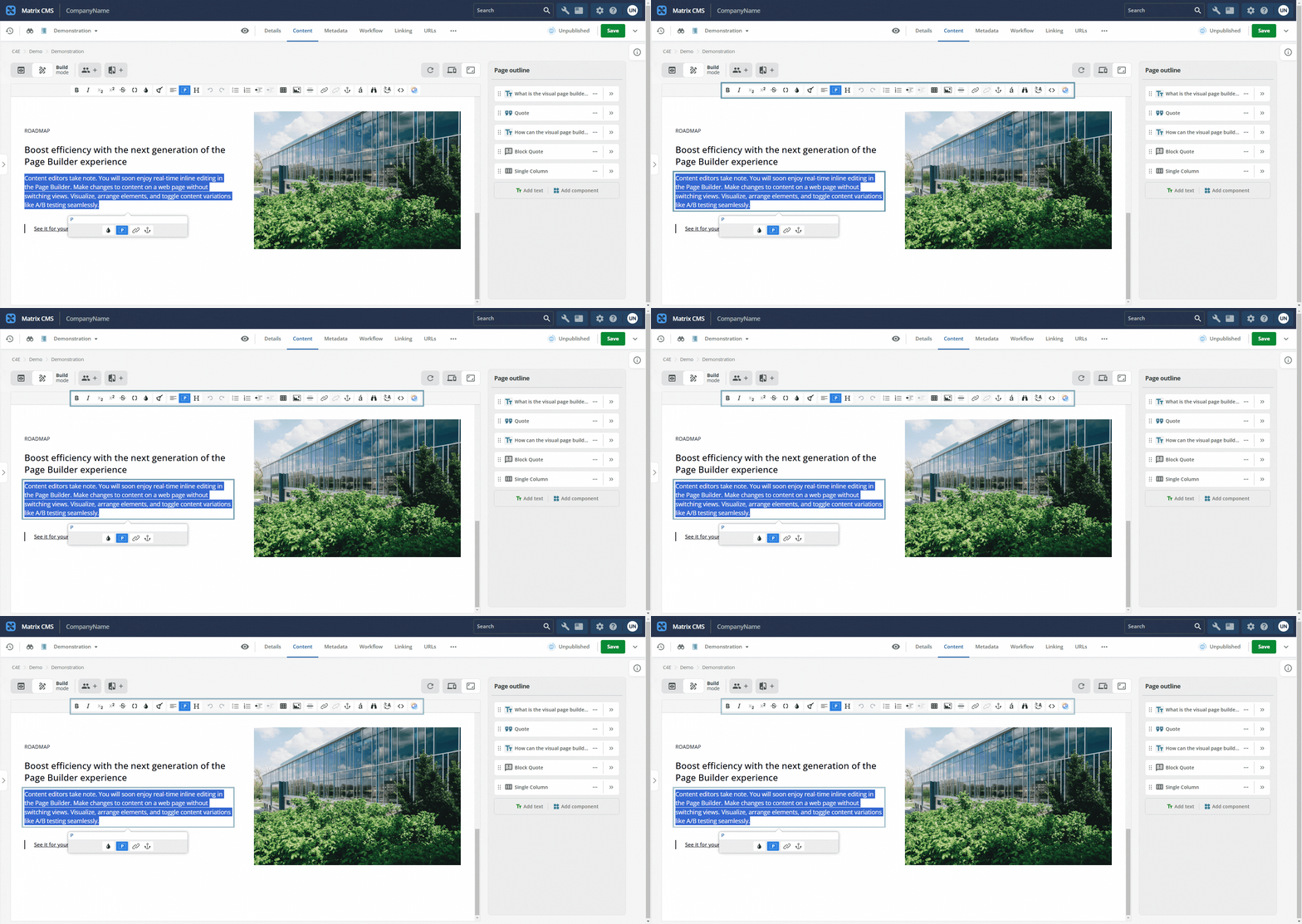
The indicator shows which regions are inline editable and which values still require the page outline column.
When FormattedText fields are edited inline, a full editing toolbar appears.
Manifest.json file changes
The change needed to enable inline editing is an addition to the manifest.json file, together with an addition to each field in the JavaScript source file.
Like Quick options, use the ui:metadata property:
"ui:metadata": {
  "inlineEditable": true
}
A complete example of a single String property is shown below:
"author": {
  "type": "string",
  "title": "Author",
  "ui:metadata": {
    "inlineEditable": true
  }
}
Another complete example of a single SquizImage property (inline action) is shown below:
"image": {
  "type": "SquizImage",
  "title": "Image",
  "ui:metadata": {
    "inlineEditable": true
  }
}
JavaScript file changes
To make a field inline editable within the JavaScript file, you must specify the mapping between the variables passed to the main function and the property defined in the manifest.json file.
This is done by adding a data-sq-field property to a wrapping HTML element.
For example:
<div data-sq-field="author">
  ${author}
</div>
This establishes a mapping between the passed author variable and the author property in manifest.json.
Sometimes it is necessary to wrap variables in an element, such as a <span>, to specify the exact boundary of the editable region.
This ensures surrounding static text is not affected:
<em>-- <span data-sq-field="author">${author}</span></em>Inline editing and arrays
When working with array objects, references in the data-sq-field property need to include the index of the entry.
The index identifies which array item is active when the editor edits inline.
<div data-sq-field="stats[${index}].value">
  ${item.value}
</div>
Complex behaviors
When you add complex behaviors such as event handlers to FormattedText fields on components that use inline editing, those handlers do not run in the preview column unless you wrap the field in an extra element and attach the handler to the wrapper.
As an example, attaching an event handler directly to the <div> holding the FormattedText field quote is problematic:
<div data-sq-field="quote"> /* event handlers attached here will not work */
  ${quote}
</div>
Instead, add a wrapper <div> around the code and attach the event handler to the outer wrapper rather than the element with the data-sq-field attribute:
<div class="wrapper"> /* attach event handlers to this div instead */
  <div data-sq-field="quote">
    ${quote}
  </div>
</div>