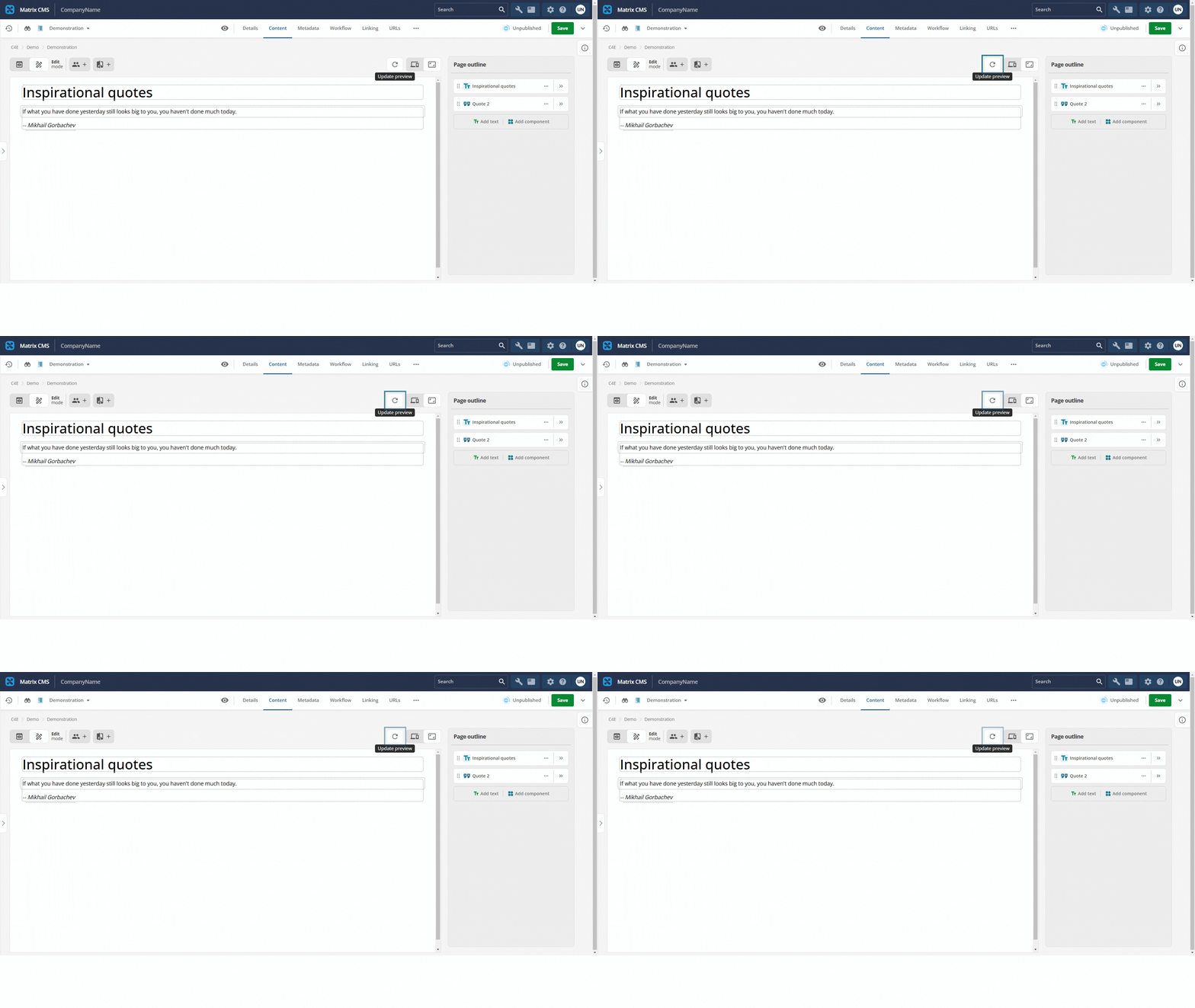
Auto reload
By default, if a component property is changed in the page outline column, the component in the preview column automatically reloads to reflect the updated view.
In some cases, automatic reload degrades performance. For example, the component may establish a remote connection to retrieve data on load. In those cases, disabling auto-reload for that component reduces load on each property change.
As with the other settings discussed in this section, disabling auto-reload is done by adding the autoReload setting in the ui:metadata block at the top-level of the manifest.json file and setting it to false.
"ui:metadata": {
  "autoReload": false
}
A complete example of the top level of a manifest is shown below:
{
  "$schema": "http://localhost:3000/schemas/v1.json#",
  "version": "1.0.0",
  "type": "edge",
  "name": "db-query",
  "displayName": "Database query",
  "description": "Pull data from the database",
  "namespace": "db-set",
  "ui:metadata": {
    "autoReload": false
  },
  "icon": {
    "id": "library_books",
    "color": {
      "type": "hex",
      "value": "#095c78"
    }
  }
}
The default value for autoReload is true.
If the autoReload property does not exist, or is set to true, the component automatically reloads when a property changes.
We recommend that you set autoReload to false only if automatic reload impairs preview behavior or performance (for example, slow preview or repeated remote calls on each reload).