Embed the form for prefilling in CMS
With the backend configuration complete, embed the form into a live webpage using Squiz CMS.
Both Content page assets and Standard page assets are supported.
Retrieve prefill code
-
In the CDP destination’s Attribute Mapping section, click the plus icon (+) to add a new mapping.
-
The system displays a
<head>tags code.Copy this code.
Retrieve Smart JS embed code
Standard JavaScript or Iframe embeds do not support CDP integration. You must use the Smart JavaScript method.
-
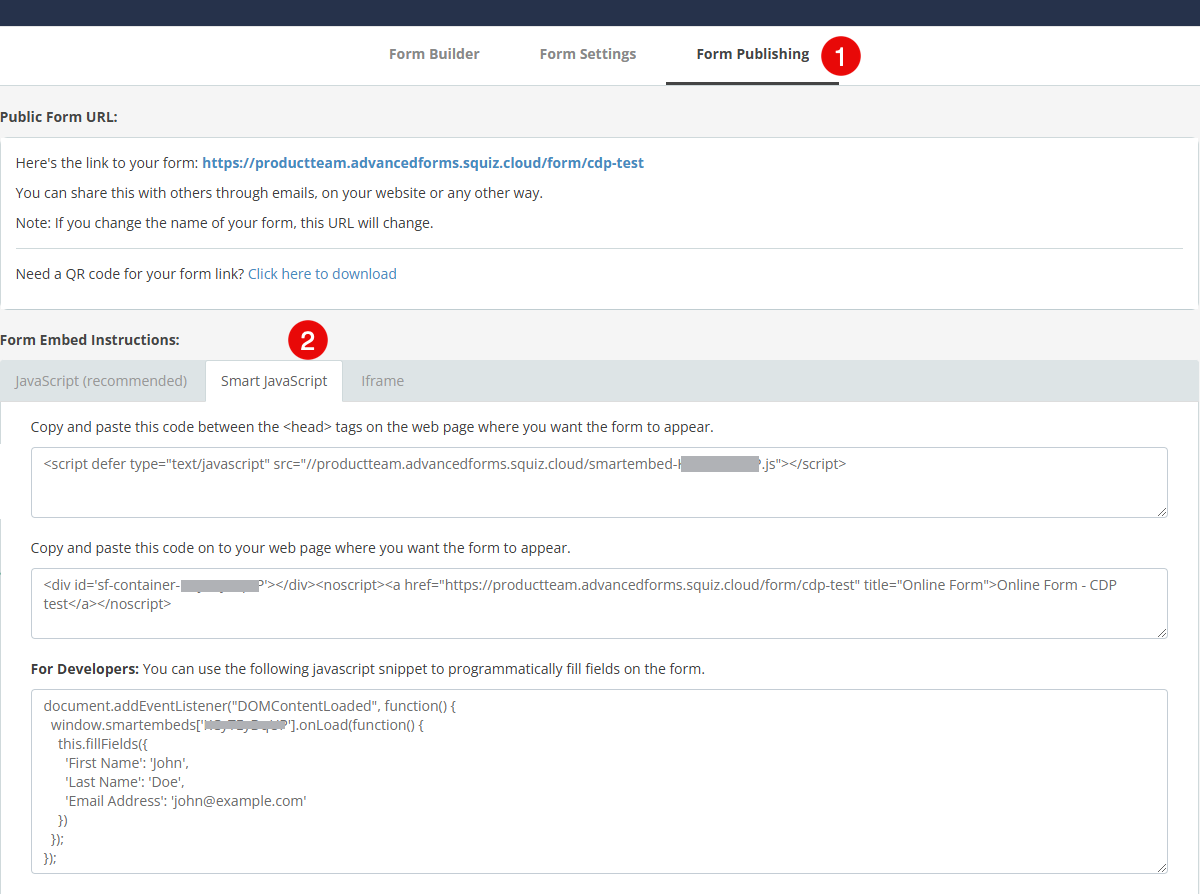
Navigate to the Form Publishing tab.
-
Select the Smart JavaScript option.
-
Copy the code snippets provided:
-
The
<script>tag (to be placed in the site header). -
The
<div>container tag (to be placed where the form should render).
-
You can then embed these snippets in your CMS. Read the Matrix 6 or Matrix 5 embedding guides for more information.
|
The code includes a unique ID specific to this form instance. Do not publish this code directly to your live site yet. You must first register this code in the CDP to generate the final integration script. |
Insert head code into design
-
Go to the CMS content page, locate the related designs, and click the content area.
-
Paste the
<head>tags code into the design. -
Save the changes.
Create or edit content page
-
In Squiz CMS, navigate to the site and create a new Content Page or edit an existing one.
-
Click Edit on the Content screen of your page.
-
Click Add Component.
-
Select the
squiz/edge-form-embedcomponent.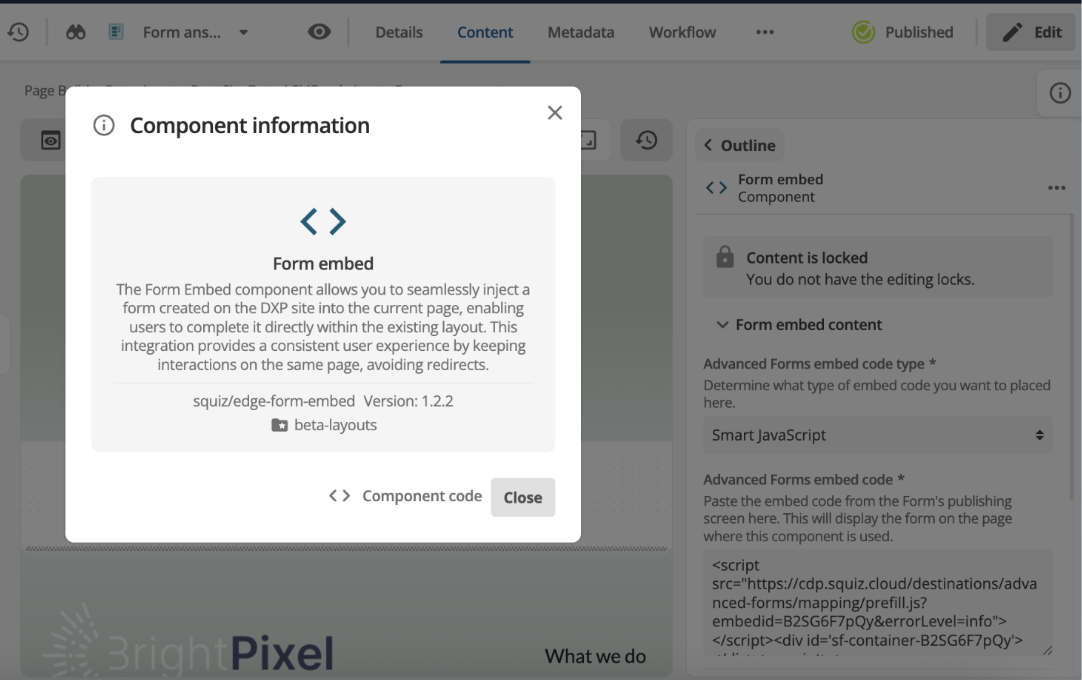 Figure 2. The squiz/edge-form-embed component in the Add Component dialog
Multiple form components are available in DXP. Only the squiz/edge-form-embedcomponent supports Smart JavaScript embedding. -
Choose the Smart JavaScript option.
Add form embed code
-
In Advanced Forms, navigate to and copy the embed code from the second text field.
-
In Squiz CMS, paste this embed code into the provided field.
-
Save the component.
-
Approve and Make Live the changes to your page.
Once embedding is complete, move on to Testing and verification.