Create a segment group from a template
Squiz CDP provides preconfigured templates to quickly activate personalization. These templates automate the creation of both Mutually Exclusive Groups and the required event feeds, reducing manual setup for common use cases.
Prerequisites
-
You must have the necessary permissions to create segments in Squiz CDP.
-
Read About the Segmentation UI to understand the segmentation interface.
Steps
-
Navigate to in the Squiz DXP Console.
-
Click Create.
-
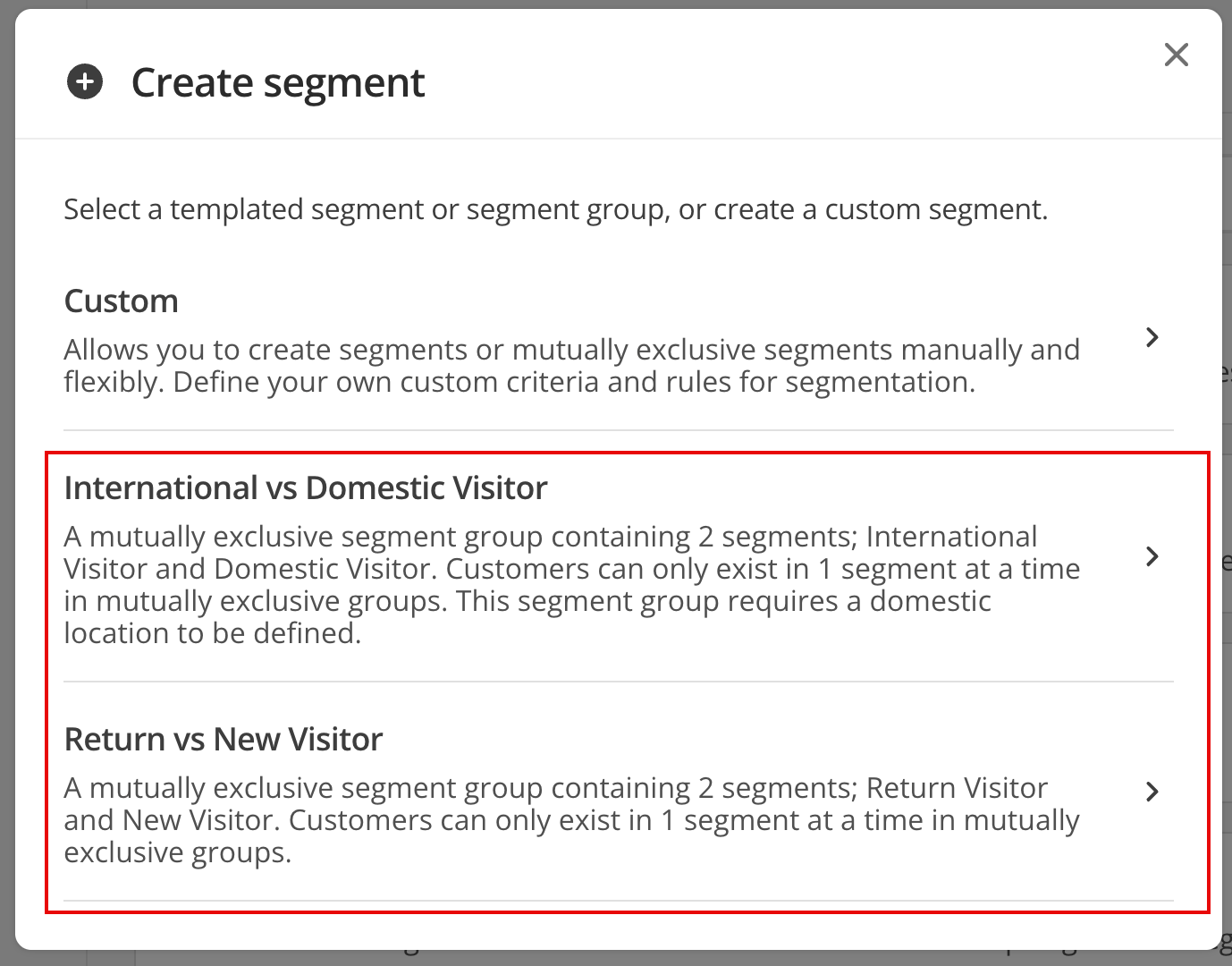
Select the Segment option in the drop down menu to open the Create segment dialog box.
-
Select one of the options listed:
- Custom
-
Use this option to manually create a segment and configure all fields and the event feed.
- International vs Domestic Visitor
-
A mutually exclusive segment group containing two segments:
- International Visitor
-
Includes all users located outside the country you select during setup.
- Domestic Visitor
-
Users within the selected country.
This template automatically creates two separate event feeds based on your country selection. Users can only exist in one segment at a time within a mutually exclusive group.
- Return vs New Visitor
-
A mutually exclusive segment group containing two segments:
- Return Visitor
-
Targets users who last visited at least 30 minutes ago.
- New Visitor
-
Targets first-time visitors or anyone within 30 minutes of their first visit.
This template uses the industry standard visit logic to distinguish between visitor types. Users can only exist in one segment at a time within a mutually exclusive group.
-
(Optional) Update the default segment names.
If you use the same template multiple times, Squiz CDP automatically appends a unique number to the segment and group names to avoid conflicts.
-
Click Create.
Squiz CDP creates the mutually exclusive group and the associated event feeds. This process can take up to 20 seconds.
-
Review the newly created group in the Segments tab.
Working with templated segments
Creating a segment group from a template provides a preconfigured structure based on common usage patterns. Templates provide a starting point while maintaining the flexibility to adapt the segments to specific needs.
Review associated events
After creating a segment group from a template, perform the following actions to verify the logic:
-
View the events associated with the segment rules.
-
Review how the template defines visitor behavior or attributes, such as page views, visit sessions, and location signals.
These actions clarify the data the segment uses and how the CDP evaluates it.
Customize a segment group
Templates do not restrict the segment logic. Perform the following updates to refine the audience definitions:
-
Add new events to extend the segment logic.
-
Modify existing rules to match a specific use case.
-
Combine additional conditions for more granular targeting.
For example, a segment group based on Returning Visitors can be extended by adding a form submission event. This allows for the identification of highly engaged returning users who have reached a specific submission response URL.
Starting with a proven segmentation model and progressively tailoring it ensures the segments reflect specific audience strategies and business goals.