Login event feed
The login event is triggered when frontend authorization is attempted.
Create a login event feed
To setup a login website behavior event feed:
-
Log in to your Squiz DXP instance.
-
Click the Customer data platform button.
-
From the left-hand navigation select Event feeds.
-
Click the Create Event feed menu button.
If no other Event feeds exist, the button presents near the centre of the Event feeds page.
If other Event feeds are extant, the button presents in the top-right corner of the Event feeds page.
-
Select
The Create website behavior event feed page loads.
Configure the event details
On the Create website behavior event feed page configure the details for the custom event.
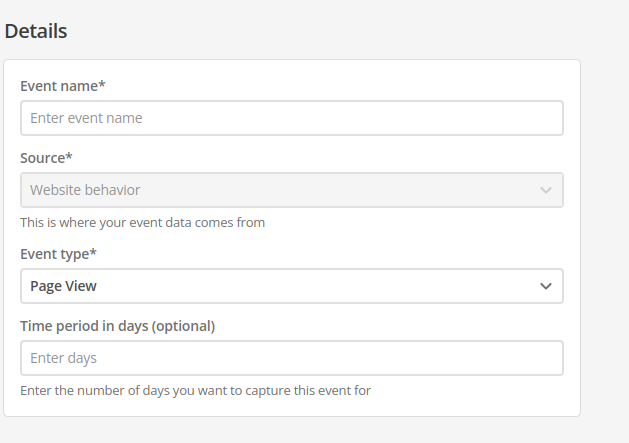
- Name
-
Enter a descriptive, memorable, and unique name for the event.
Generic or general names are not recommended.
- ID
-
The event ID is automatically generated from the Name value.
When the event is saved, this ID value is fixed.
It cannot be changed.
- Source
-
Automatically set to Website behavior.
- Event type
-
choose Login from the Event type menu.
- Time period in days (optional)
-
Set a rolling time window for event counting.
This field only accepts positive whole numbers.
Expand
- Definition
-
When you set a time period (for example, seven days), the system counts how many times a specific event (like a page view) occurred per user within that rolling window.
If a user visits your homepage five times in seven days, their count for Page View would be five.
- Dynamic event count
-
New events are added to the count.
Events older than the defined period (for example, an event eight days ago on a seven-day window) are automatically excluded.
This helps to track recent engagement and avoid stale data by focusing on activity within your chosen timeframe.
The default is 60 days.
Set the login event feed attribute filters
Login event feed attribute filters allow the event feed to trigger against the following attribute types
-
Authorized
Setting up login events using the Authorized attribute
The Authorized attribute filter sets the event to trigger against single, fixed value: Equals true.
That is, a login event feed is only triggered when a frontend authorization succeeds.
Setting up login events using IdP attributes
To trigger an event on IdP attributes, the DXP organization must be configured with Portal Authentication.
When Portal Authentication is enabled, data configured in the tenant’s chosen IdP is passed onto the login event at the edge.
|
When setting up a filter to match on IdP attributes, the key value must be the Custom user attribute name set up in Portal Authentication. This is not the attribute name returned in the SAML response. |
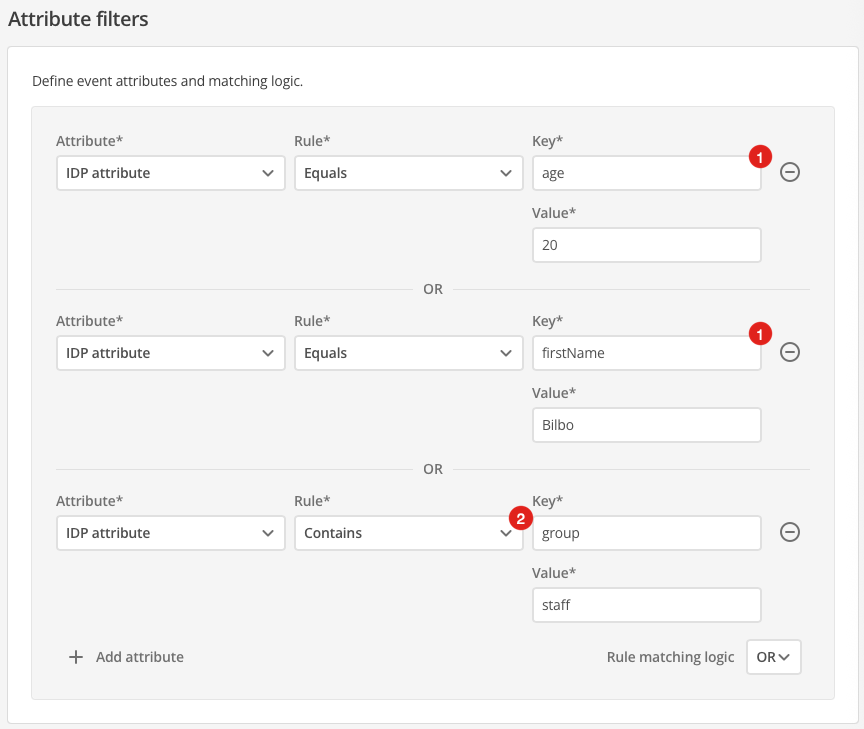
The following example login event filter triggers when the following conditions are met:
-
The user’s
ageis 20.OR
-
The user’s
firstNameis Bilbo.OR
-
The user’s
groupcontains the value staff.
-
The key strings, age and firstName, are the Custom user attribute names that map to the IdP SAML claims.
-
The Contains rule allows for a rule to match against an IdP attribute when the IdP attribute is an array. The rule above, for example, will match the following IdP data:
"group": ["student", "staff"]
|
There is no auto-completion of key strings. If a key is incorrectly entered, the filter will not work. |
Setting multiple attribute filters
Multiple filters can be set for a given event feed, and the matching logic across multiple filters can be either AND or OR.
|
The rule matching logic applies across all attribute filters set for a given feed. That is, the matching logic allows for two different rule matching states.
|
Create the event feed
-
Click the Create event feed button.
A Changes saved alert presents towards the top-right of the screen, and the Event feeds page reloads with the new event listed.
-
Alternatively, click the Cancel button to return to the Event feeds page without saving any of the entered details (and, if applicable, without saving any of the Attribute filters).