Use the Spark wizard to create a page from a brief. The wizard asks for a location, an optional template, and your brief, then builds the page in the background.
Before you start
- You have opened Spark and connected to it.
- You know where the page needs to sit in the asset tree. The location must be inside a site.
- You have a brief, and optionally reference files. See Write a brief for Spark and Add reference files to a brief.
|
Spark checks your available credits when you make this choice. If your credits are close to the limit, Spark shows a message and you can select OK to continue. If your credits have run out, see Spark page creation errors. Spark can only create pages under a site. If you choose a location outside a site, or in the trash, Spark shows an error and you must choose another location. Templates with zone restrictions might limit where Spark can place content and components. |
Steps
- In the Spark panel, select New page to build a page without a template, or New page from template to build a page from one of your organization’s page templates.
- On the Where do you want to setup your page? screen, choose the location for the new page.
Each recommended location shows the asset name and its asset ID.
Choose one of the following options:
- Select Current location to create the page under the asset you have open.
- Select Parent of current location to create the page next to the asset you have open.
- Select Select asset in tree, then select a site, folder, or page in the asset tree.
- If you selected New page from template, choose a template on the What template would you like to build from? screen.
Select a template under Suggested templates, or select Proceed without a template. Each template shows its name and asset ID.
If no templates are available at the location, Spark shows There are no available templates for this asset location. Select Proceed without template to continue, or Change location to choose another location.
- On the What should your page include? screen, describe the page in the brief and, optionally, select Upload to add reference files.Figure 2. Writing a brief in Spark.
Select Next when you have written a brief, added at least one file, or both.
For help, see Write a brief for Spark and Add reference files to a brief.
- On the Ready to get building? screen, check the summary.
The summary shows the template, the location, the brief, and the documents you added. Select the edit icon next to an item to change it.
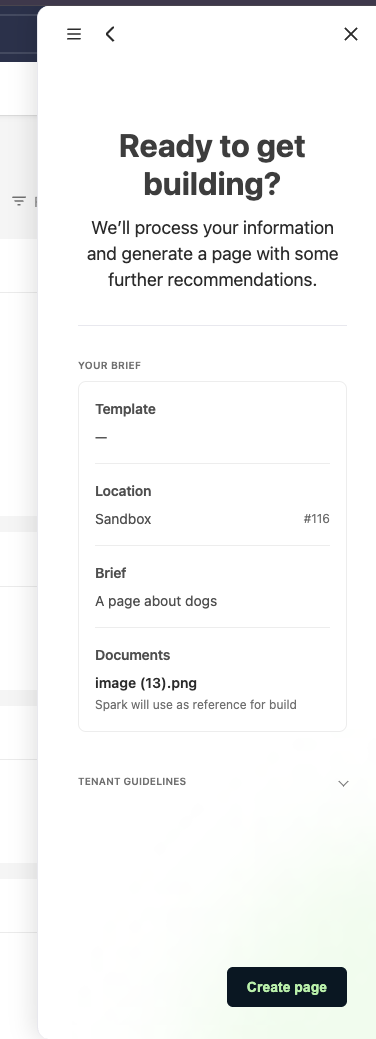 Figure 3. Reviewing the brief before Spark builds the page.
If your administrator has set page creation guidelines, the Tenant guidelines section shows them. Select the section to read the guidelines that Spark applies.
- Select Create page.
Spark starts building the page and shows the Creating your new page screen with a status line. For a description of each status, see How Spark works.
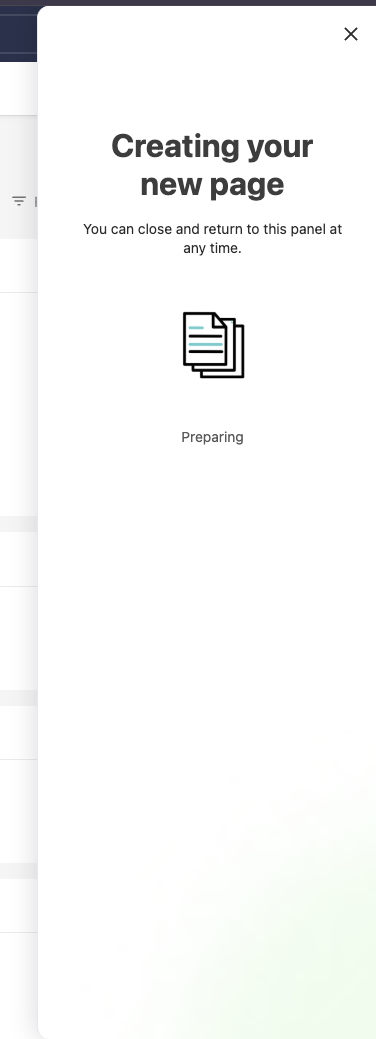 Figure 4. Spark building a page.
 - Wait for Spark to finish, or close the panel and return later.
Spark builds the page in the background. If the build takes longer than expected, Spark tells you that complicated pages can take more time.
When Spark finishes, it shows the Page Completed screen.
Start again
To discard your choices and return to the start, select the menu button at the top of the panel, then select Start again. The menu is available while you choose a location, choose a template, write a brief, and review your brief.
Next steps
Read Review a page that Spark created to check the page.