Spark has an organization-wide setting that turns the whole service on or off, and a separate setting for each Spark feature. Spark appears in Squiz Content Management only when both the Spark platform and Page Creation are on.
Before you start
- Spark is part of your Squiz DXP subscription and Squiz has activated it for your organization. If you do not see the Spark tile on the dashboard, contact your Squiz representative.
- Your user account has the Owner primary role or Admin primary role primary role. Users with the Developer primary role can view the Configuration screen but cannot change it.
Turn on Spark
- Sign in to Squiz DXP and select the Spark tile on the dashboard.
- Select Configuration.
The Feature toggles tab opens.
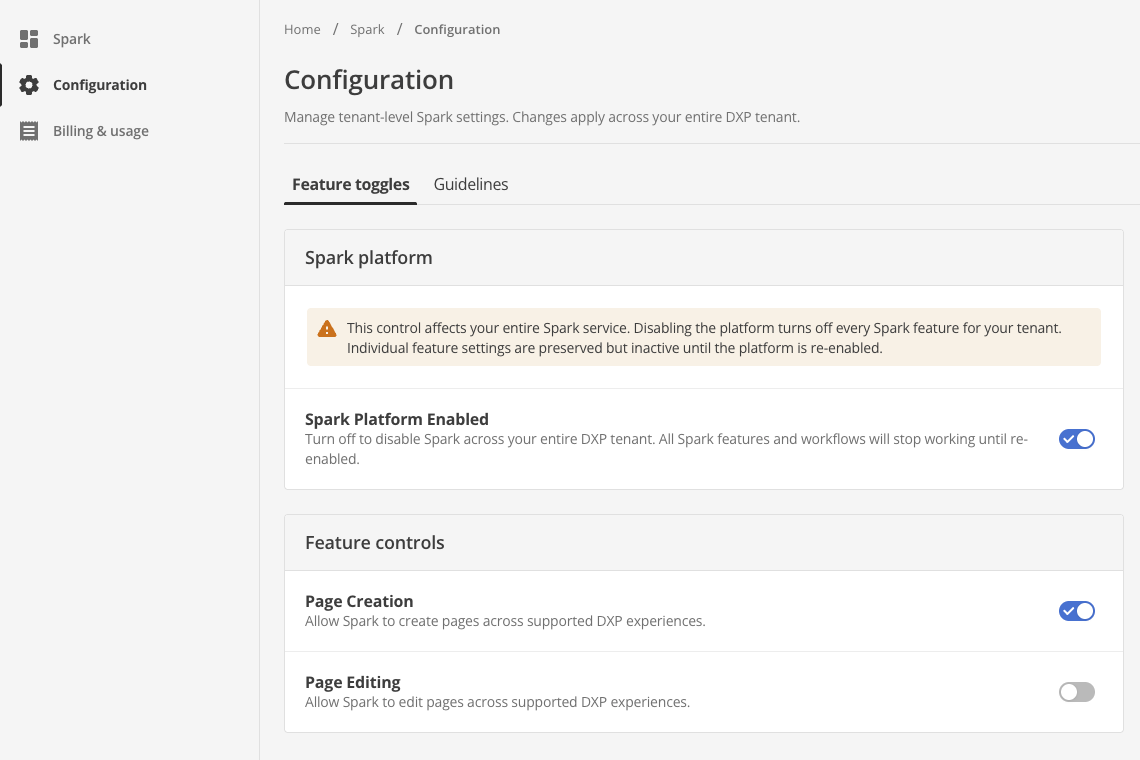 Figure 1. The Spark feature toggles.
 - In the Spark platform section, turn on Spark Platform Enabled.
Spark shows the message Spark has been enabled for your tenant.
- In the Feature controls section, turn on Page Creation.
This setting lets Spark create pages.
After you turn on both settings, users who are allowed to use Spark can see it in Squiz Content Management. See Control who can use Spark.
|
The Page Editing setting is managed by Squiz and you cannot change it. |
Turn off page creation
Turn off Page Creation to stop users from creating pages with Spark. Spark no longer appears in Squiz Content Management. The settings you made for other Spark features stay in place.
Turn off Spark
- Select Configuration, then open the Feature toggles tab.
- Turn off Spark Platform Enabled.
- In the Disable Spark platform dialog, read the message, then select Disable.
Spark shows the message Spark has been disabled for your tenant.
|
Turning off the Spark platform stops every Spark feature and workflow across your organization. Your individual feature settings are kept but have no effect until you turn the Spark platform on again. |
Next steps
- Read Control who can use Spark to choose which users see Spark.
- Read Set page creation guidelines to set instructions for every page.