The Credit Control dashboard in Spark shows the status of Spark for your tenant, as well as personal and tenant credit summaries. You can also allocate credits from your tenant to new or existing users.
To access the Credit Control dashboard:
- Sign in to Squiz DXP and select the Spark tile on the dashboard.
- Select Credit Control.
Overview
The Tenant status shows whether your allocations are valid.
Review the Personal summary to see the credits allocated to you, the credits you used, and your remaining allocated credits.
Review the Tenant summary to see how many credits are available for all users and how many credits have already been used or not yet allocated.
Review the Allocations table to show user allocated credits, used credits, and remaining credits.
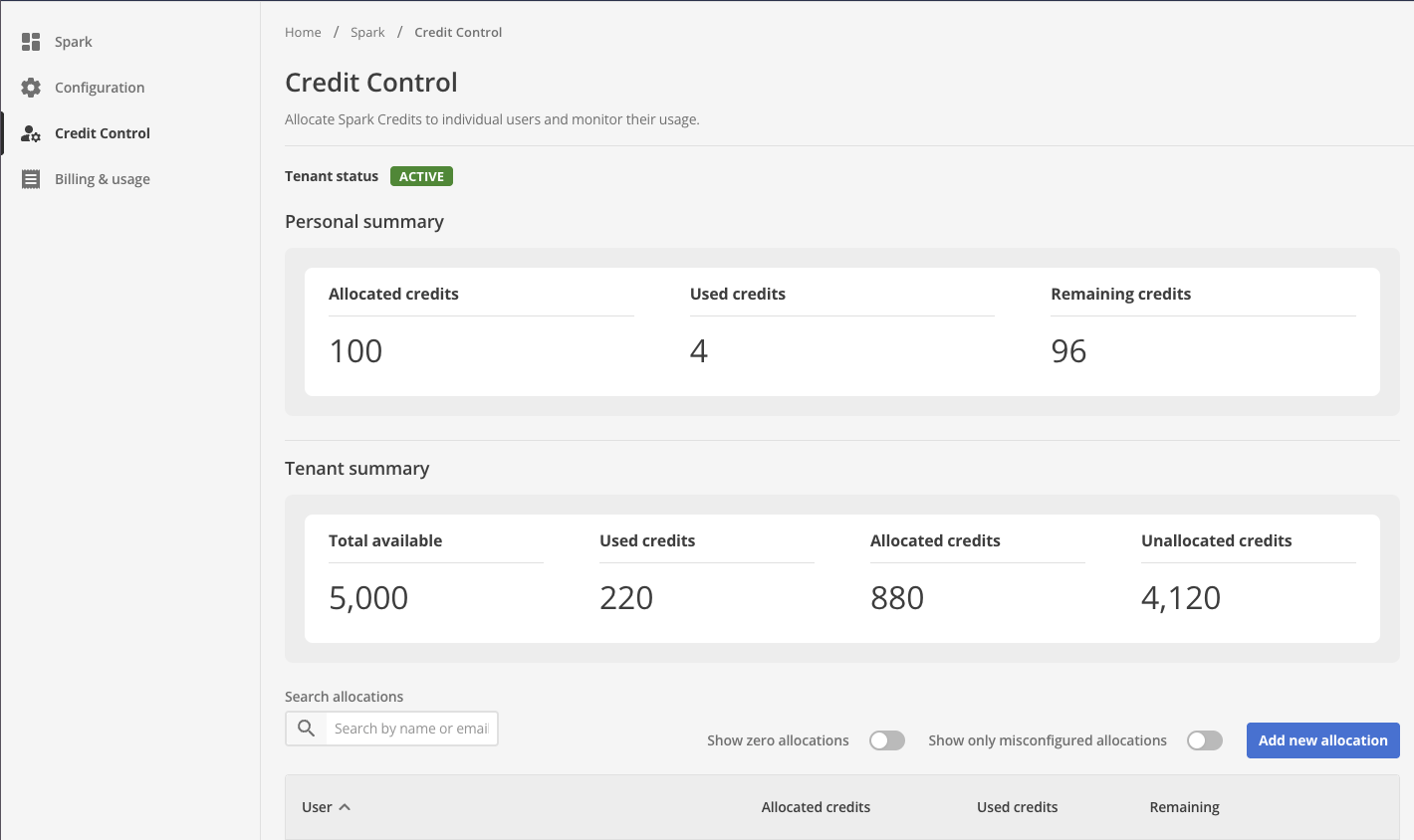
Tenant summary
The tenant summary group shows the credit totals for your organization.
- Total available
-
The number of credits in your subscription.
- Used credits
-
The number of credits used by you users have used.
- Allocated credits
-
The number of credits you have given to users.
- Unallocated credits
-
The number of credits you can still allocate.
Find an allocation
Use the Search allocations field to find users with misconfigured or insufficient allocations.
- Enter a name or email address in Search allocations.
- Turn on Show zero allocations to include users who have no credits.
- Turn on Show only misconfigured allocations to list allocations that need attention.
Read About the tenant status for more information about this topic.
Add an allocation
- Select Add new allocation.
- In Select user, choose the user.
- In Allocation, enter the number of credits to allocate.
- Select Add allocation.
The number of credits you allocate must be a positive number. The total of all allocations cannot exceed the Total available credits.
Change or remove an allocation
- Select the actions menu (…) at the end of the user’s row.
- Choose the action that you want:
- Select Edit to change the allocation. In the Edit allocation dialog, enter the new number of credits in Allocation, then select Save.
- Select Delete to remove the user’s allocation.
An allocation cannot be zero. To stop a user from using Spark credits, delete their allocation.