Reference files give Spark content to use, instructions to follow, or a layout to base the page on. You can add them on the What should your page include? screen, next to your brief.
File limits and types
Spark accepts up to five files for each page. The following table lists the supported file types and size limits.
| Kind of file | File types | Size limit |
|---|---|---|
Documents | DOCX, PDF, TXT, RTF | 10 MB for each file |
Images | PNG, JPG, JPEG | 3.8 MB for each file |
Spark scans every file for security threats before it uses the file. Spark blocks a file that does not pass the scan, and rejects a file whose name matches a file you already added.
Steps
- On the What should your page include? screen, select Upload.
After you add a file, the button changes to Upload more.
- Choose one or more files from your computer.
Spark uploads each file as soon as you select it and shows it under your brief.
- (Optional) Select Add note under a file to tell Spark how to use it.
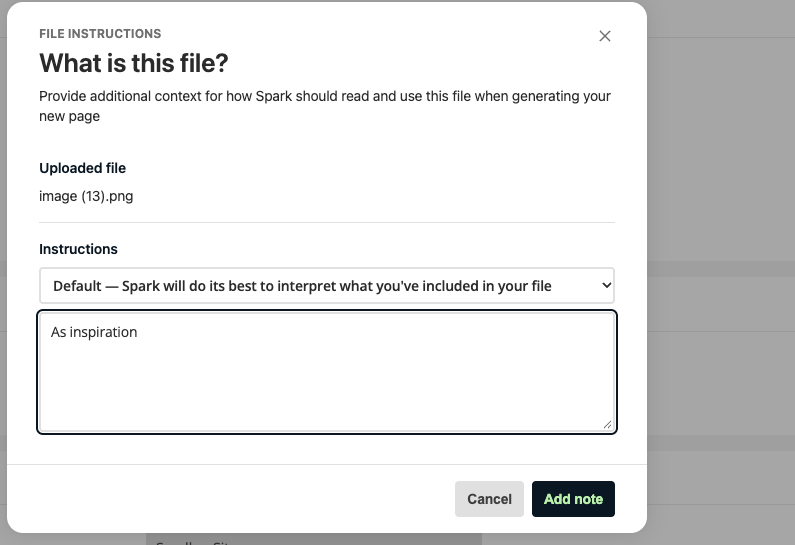 Figure 1. The file instructions dialog.
 - In the What is this file? dialog, choose an option from the Instructions list.
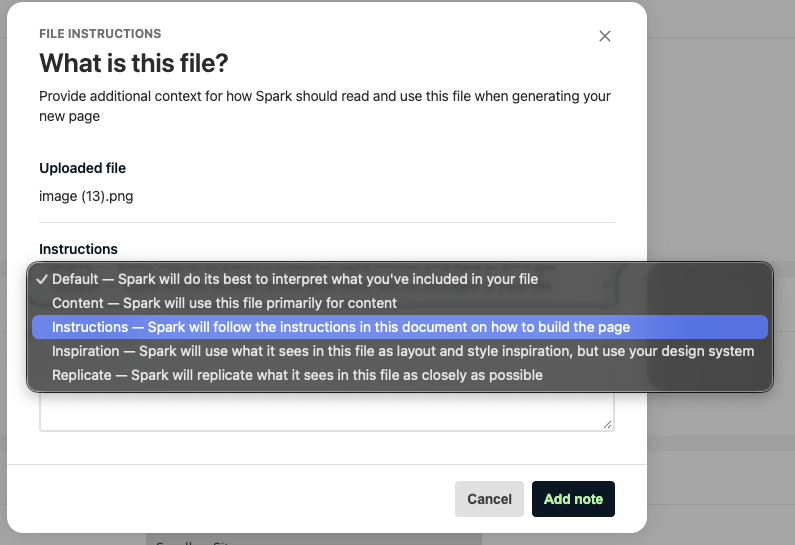 Figure 2. The options for how Spark uses a file.
 - (Optional) Enter more detail in the notes box, for example "Use the layout of the top section only".
- For a PDF or DOCX file, decide whether to select Upload images from this document to Matrix.
When you select this option, Spark uploads the images in the document to Squiz Content Management so that the page can use them.
- Select Add note.
The file now shows the option you chose. If you also entered notes, the file shows the option name followed by the text additional instructions.
- Select Next when you have finished adding files.
To remove a file, select the X at the right of the file under your brief. You can remove a file at any time before you select Next.
Choose how Spark uses a file
If you do not choose an option, Spark uses Default and works out how to use the file from your brief and the file contents. The following table describes each option.
| Option | What Spark does |
|---|---|
Default | Spark interprets the file from its contents and your brief. |
Content | Spark uses the file primarily for the content of the page. |
Instructions | Spark follows the instructions in the document on how to build the page. |
Inspiration | Spark uses what it detects in the file as layout and style inspiration, but builds the page with your design system. |
Replicate | Spark replicates what it detects in the file as closely as possible. |
When you choose Inspiration, Spark clears Upload images from this document to Matrix by default.
Example uses
- Upload a Word document of approved copy and choose Content.
- Upload a screenshot of an existing page and choose Replicate to rebuild the layout from your own components.
- Upload a mockup and choose Inspiration to take layout ideas without copying the design exactly.
- Upload a document of page-building rules and choose Instructions.
Next steps
- Read Create a page with Spark to continue through the wizard.
- If an upload fails, read Spark upload errors.