Website behavior event feed
Page view events capture information about a user’s interaction with a URL.
For the consentless alternative, see Consentless website behavior event feed. For a side-by-side comparison, see Consent-required vs consentless page view feeds.
Create a website behavior event feed
To set up a website behavior event feed:
-
Log in to your Squiz DXP instance.
-
Click the Customer data platform button.
-
From the left-hand navigation select Event feeds.
-
Click the Create Event feed menu button.
If no other Event feeds exist, the button presents near the centre of the Event feeds page.
If other Event feeds are extant, the button presents in the top-right corner of the Event feeds page.
-
Select from the create menu.
This opens the Create website behavior event feed page. Captures and stores event data with user consent. Best for persistent personalization such as email campaigns, SMS journeys, and targeted ads.
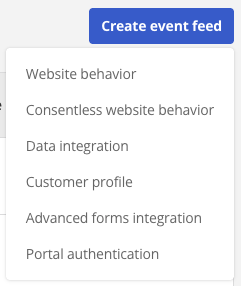 Figure 1. Create event feed menu
Configure event feed details
On the Create website behavior event feed page, configure the details for the page view event.
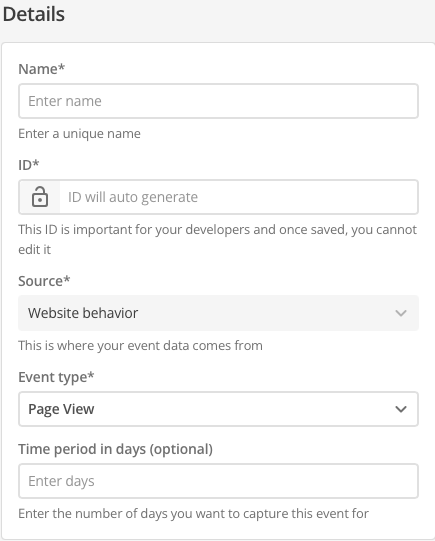
- Name
-
Enter a descriptive, memorable, and unique name for the event feed.
Generic or general names are not recommended.
- ID
-
The event ID is automatically generated from the Name value.
When the event feed is saved, this ID value is fixed.
It cannot be changed.
- Source
-
Automatically set to Website behavior.
- Event type
-
Choose Page view from the Event type menu.
- Time period in days (optional)
-
Set a rolling time window for event counting.
This field only accepts positive whole numbers.
Expand
- Definition
-
When you set a time period (for example, seven days), the system counts how many times a specific event (like a page view) occurred per user within that rolling window.
If a user visits your homepage five times in seven days, their count for Page View would be five.
- Dynamic event count
-
New events are added to the count.
Events older than the defined period (for example, an event eight days ago on a seven-day window) are automatically excluded.
This helps to track recent engagement and avoid stale data by focusing on activity within your chosen timeframe.
The default is 60 days.
Set the page view event feed attribute filters
Page view event feed attribute filters allow the event feed to trigger against the following attribute types.
-
Device type
-
URL - Domain
-
URL - Path
-
URL - Query string
-
Referrer - Domain
-
Referrer - Path
-
Referrer - Query string
-
Language
-
Location - City
-
Location - Continent
-
Location - Country
-
Location - Region
-
Location - Region code
-
Interest - Tags
For Device type and Language, and for all other attributes except Interest - Tags, the filtering rule is whether the attribute type is or is not the nominated value (that is Equals or Does not Equal the nominated value).
The Interest - Tags attribute filtering rule is whether the nominated tag value is set or not set (that is Has tag or Does not have tag).
Device type
The Device type attribute filters on the visitor device category from the page view signal.
Select a value from the drop-down menu:
-
Desktop
-
Mobile
-
Tablet
Use Equals or Does not Equal, and other standard operators, like other non-tag attributes.
Language
The Language attribute filters on the visitor’s Accept-Language header value.
Select a locale from a searchable list. Values are stored as lowercase BCP 47 locale codes.
Available operators:
-
Equals
-
Does not Equal
-
Contains
Examples:
-
en-gb— UK English -
en-us— US English
| The language list includes many locales. Search by language name or code in the UI. |
Location attributes
Location attribute filters use geolocation data derived from the visitor IP address at the Cloudflare edge.
Use Equals or Does not Equal, and other standard operators, like other non-tag attributes.
| Event feed attribute | Cloudflare field | Value format | Example |
|---|---|---|---|
Location - City |
|
City name |
|
Location - Continent |
|
Continent code |
|
Location - Country |
|
ISO 3166-1 Alpha-2 country code |
|
Location - Region |
|
Region name |
|
Location - Region code |
|
Region code |
|
Location - Region is the region name (for example, Texas).
Location - Region code is the short region code (for example, TX).
Do not interchange these values.
Location - Continent codes
Continent codes are two-letter values defined by Cloudflare:
-
AF— Africa -
AN— Antarctica -
AS— Asia -
EU— Europe -
NA— North America -
OC— Oceania -
SA— South America -
T1— Tor network
For the full reference, see Cloudflare: ip.src.continent.
Location - Country codes
Enter the two-letter ISO 3166-1 Alpha-2 country code (for example, GB for the United Kingdom, US for the United States).
For the full reference, see Cloudflare: ip.src.country.
Location - City
Enter the city name associated with the visitor IP address (for example, San Francisco).
For the full reference, see Cloudflare: ip.src.city.
Location - Region and region code
-
Location - Region maps to
ip.src.region— the region name (for example,Texas). -
Location - Region code maps to
ip.src.region_code— the region code (for example,TX).
For the full reference, see Cloudflare: ip.src.region and Cloudflare: ip.src.region_code.
| Geolocation is inferred from IP address data and may not always match a visitor’s exact location. |
Interest - Tags
Interest - Tags is supported for consent-required (Website behavior) page view event feeds only. Consentless page view feeds do not support this attribute filter. See Set the page view event feed attribute filters for supported consentless filters.
Use Has tag or Does not have tag to filter on whether the nominated tag value is set or not set.
To track Interest Tags as part of the Page View event in CDP, you must define and apply the squiz:dxp:interest metadata field to your content.
This specific metadata field — squiz:dxp:interest — does not exist by default.
It must be created and added to a page within the CMS. The value from this specific metadata field is used to collect the event.
Setting multiple attribute filters
Multiple filters can be set for a given event feed, and the matching logic across multiple filters can be either AND or OR.
|
The rule matching logic applies across all attribute filters set for a given feed. That is, the matching logic allows for two different rule matching states.
|
Create the event feed
-
Click the Create event feed button.
A Changes saved alert presents towards the top-right of the screen, and the Event feeds page reloads with the new event listed.
-
Alternatively, click the Cancel button to return to the Event feeds page without saving any of the entered details (and, if applicable, without saving any of the Attribute filters).
Next steps
After creating the feed, use it in a consent-required segment. See Consent-required website behavior rules.