Create an exclusive segment group
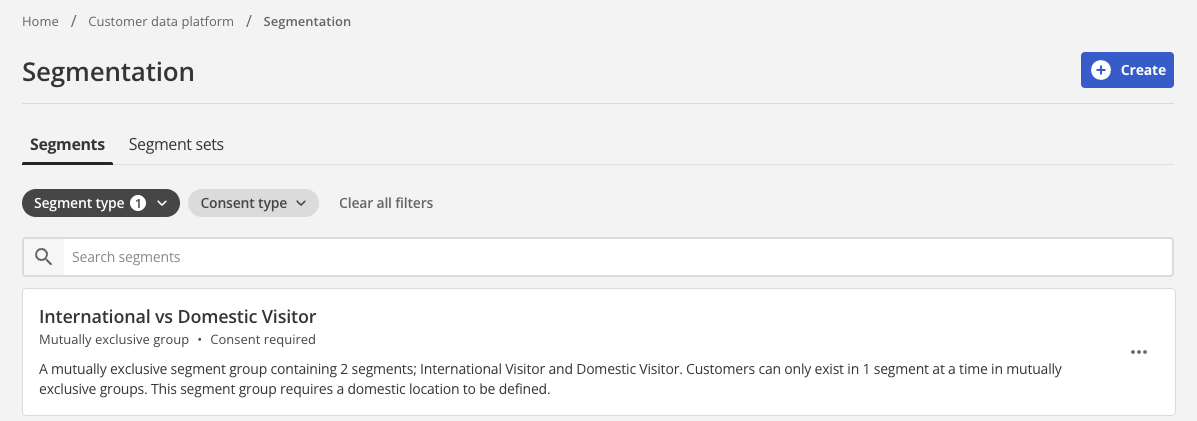
The segmentation feature lets you create exclusive segments within the platform so customers can only be placed in one segment group.
Before starting
-
Read About segmentation types to understand the differences between single and mutually exclusive group types.
-
Read Create a single segment to familiarize yourself with the basic fields that apply to each segment group.
-
If using website behavior rules, configure an event feed that matches the group’s consent type first. See Configure website behavior segmentation rules.
Begin creating an exclusive segment
To create an exclusive segment:
-
Click Segmentation from the navigation.
-
Click Create a segment.
-
Click Mutually exclusive group.
-
In the Segment type section, confirm Mutually exclusive group is selected.
-
Select a Consent type. You must select a consent type before you can add rules.
-
Consentless — Uses event signals that do not identify users and are not stored. Best for real-time request-based personalization such as on-page content and CTA optimization.
-
Consent required — Captures and stores event data with user consent to provide personalized experiences. Best for persistent personalization such as email campaigns, SMS journeys, and targeted ads.
Consent type cannot be changed when editing an existing segment.
If you change consent type after defining rules, a confirmation dialog appears. Continuing discards the rules in the segment(s) you defined. -
-
Specify a Group Name for the exclusive segment group.
This name helps identifies the group and its purpose in other Squiz DXP services.
-
Set the Segment priority
Mutually exclusive group segmentation rules can be switched between two sorting patterns: recency and hierarchy.
When Consentless is selected as the consent type, By recency segment priority is not available (Not compatible with consentless). Only By hierarchy is available for consentless mutually exclusive groups. If you switch from consent required to consentless while By recency is selected, the recency selection is cleared.
- By recency
-
If a given user matches multiple mutually exclusive group segments, that user is placed in the most recently assigned segment to the exclusion of all others.
Not available for consentless segments.
- By hierarchy
-
If a given a user matches multiple mutually exclusive group segments, that user is placed in the segment with the highest priority order in the hierarchy list.
-
Depending on the Segment priority chosen, the segment creation user interface presents slightly differently.
The two subsections following — Creating exclusive segments prioritized by recency and Creating exclusive segments prioritized by hierarchy — use a simple Staff and students mutually exclusive group example to document the differences.
Creating exclusive segments prioritized by recency
-
Two placeholder segments named Segment 1 and Segment 2 are created automatically.
Renaming a segment applies the new name immediately.
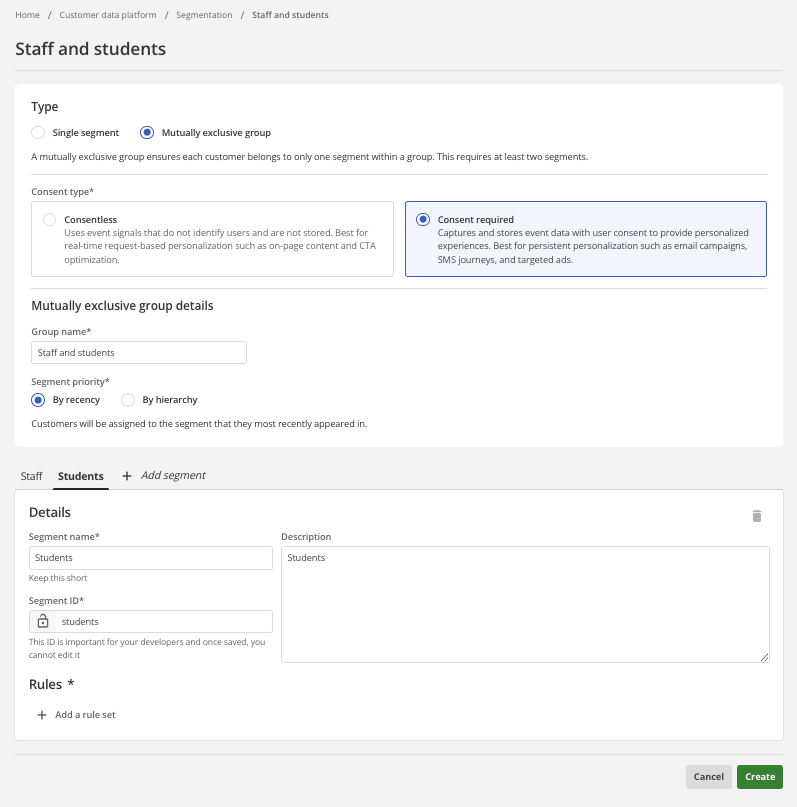 Figure 1. Mutually exclusive segments by recency
 -
The Segment priority is set to By recency.
1 Use + Add segment to add more segments when the group needs more than two.
Creating exclusive segments prioritized by hierarchy
-
Two placeholder segments named Segment 1 and Segment 2 are created automatically.
Renaming a segment applies the new name immediately.
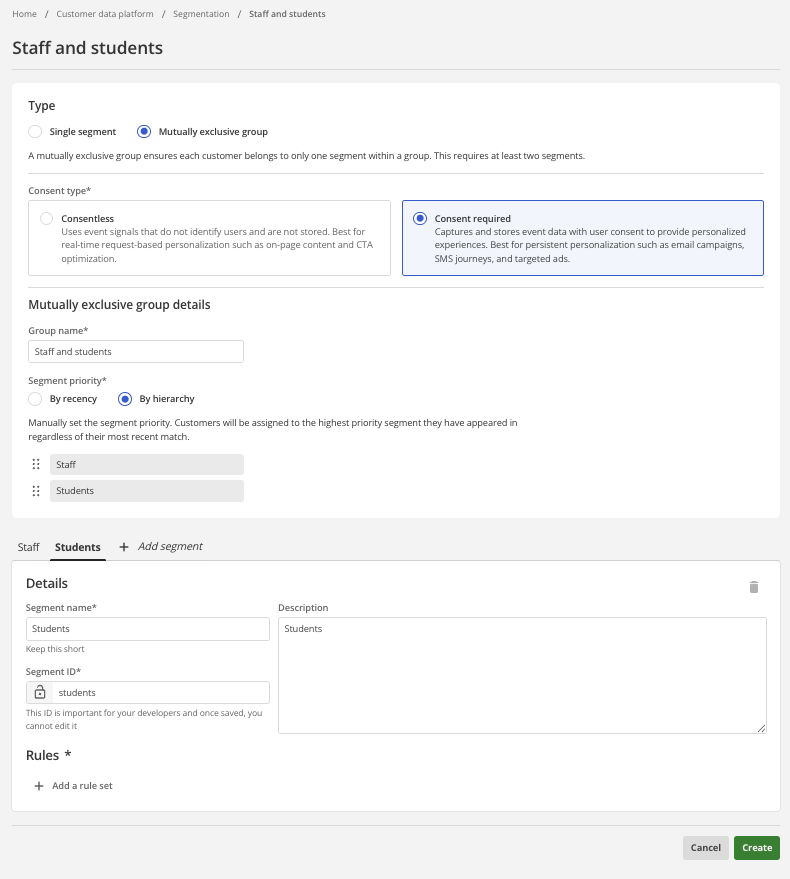 Figure 2. Mutually exclusive segments by hierarchy
-
The Segment priority is set to By hierarchy.
A list of segments presents immediately following. The order of segments in this list is the segment hierarchy.
By default, the segment hierarchy is the order of segment creation. To change this hierarchy, use the drag handles presented beside each segment in the list to drag a list item to a new position in the list.1 Use + Add segment to add more segments when the group needs more than two.
-
Finish creating exclusive segments
-
Configure your segments as required.
The Create a single segment article offers tips for completing the basic fields.
-
Repeat this process for all segments within the exclusive segment group, ensuring they are distinct and mutually exclusive.
-
Review the settings to ensure accuracy and completeness after defining all the segments within the exclusive segment group.
-
Click Save or Create to finalize the creation of the exclusive segment group and its associated segments.
Hierarchical segment priorities and segment creation order
As noted previously, a By hierarchy segment prioritization defaults to the segment creation order.
Dragging the segments in the hierarchy list to new positions changes this.
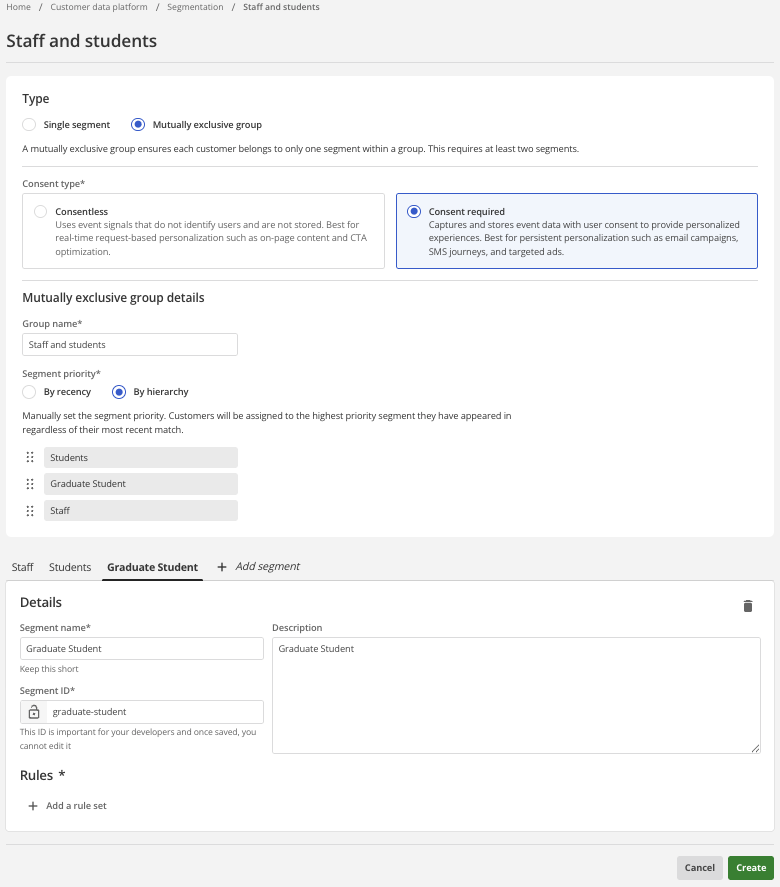
For example, the screenshot following shows an example mutually exclusive group, Staff-and-students, with a hierarchical segment priority list that is completely different to the segment creation order.
-
The By hierarchy prioritization order is:
-
Student
-
Graduate Student
-
Staff
-
-
The Segment creation order is:
-
Staff
-
Student
-
Graduate Student
-
Recency segment priorities and segment creation order
Segment creation order is not equivalent to the By recency Segment priority order.
The By recency Segment priority order prioritizes by most recent assignment and is determined on a user-by-user basis.
Continuing with the Staff-and-students example, consider a given user who is, according to the rules assigned to each Segment, both a Student and a Graduate Student.
They are in both because Student include everyone enrolled in an undergraduate course and this particular user is in a post-Graduate program but is also enrolled in an elective undergraduate course.
However, they have been in the Student segment for four years and were only assigned to the Graduate Student segment three months ago.
Because they were assigned to the Graduate Student Segment more recently than they were assigned to the Student segment, they will be assigned to the Graduate Student segment.
|
Given a By hierarchy segment prioritization order as per the previous example this same student would be assigned to the Student segment. They would be so-assigned because the By hierarchy prioritization order in the previous example has Student as the highest priority Segment. |