Create a single segment
Create a single segment that is mutually inclusive to other segments.
Prerequisites
-
Read About rule sets in CDP segments to understand how these fit into segment creation.
-
Read About segmentation types to learn about single and exclusive segmentation group types.
-
Check that you do not need to have mutually exclusive segment groups as part of your segmentation strategy. If you do, follow the steps in Create an exclusive segment group.
-
If using website behavior rules, configure an event feed that matches the segment’s consent type first. See Configure website behavior segmentation rules.
Steps
-
Click Create a segment.
-
Select the Single segment or Segment template option to open the creation interface.
-
If you select Single segment, the Segment builder page opens for manual configuration.
-
If you select Segment template, the Template Library opens. This path allows you to create a preconfigured mutually exclusive group and its required event feeds automatically. Read the Segment templates section for more information.
-
-
In the Segment type section, confirm Single segment is selected.
-
Select a Consent type. You must select a consent type before you can add rules.
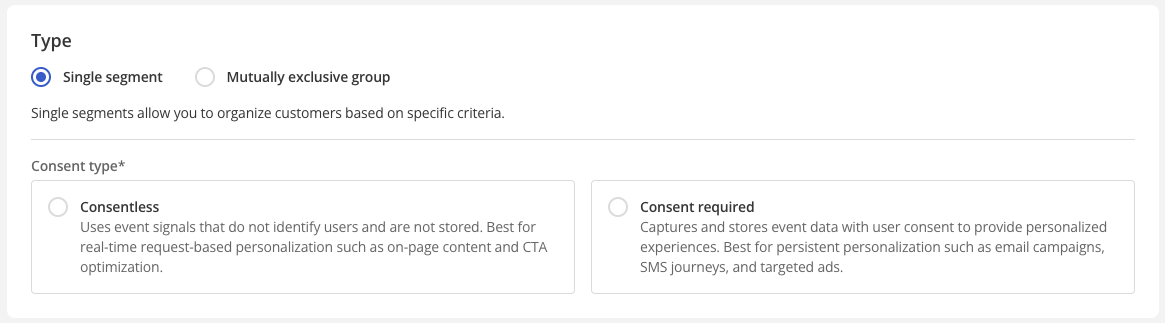 Figure 1. Segment builder consent type
-
Consentless — Uses event signals that do not identify users and are not stored. Best for real-time request-based personalization such as on-page content and CTA optimization.
-
Consent required — Captures and stores event data with user consent to provide personalized experiences. Best for persistent personalization such as email campaigns, SMS journeys, and targeted ads.
Consent type cannot be changed when editing an existing segment.
If you change consent type after defining rules, a confirmation dialog appears. Continuing discards the rules in the segment(s) you defined. -
-
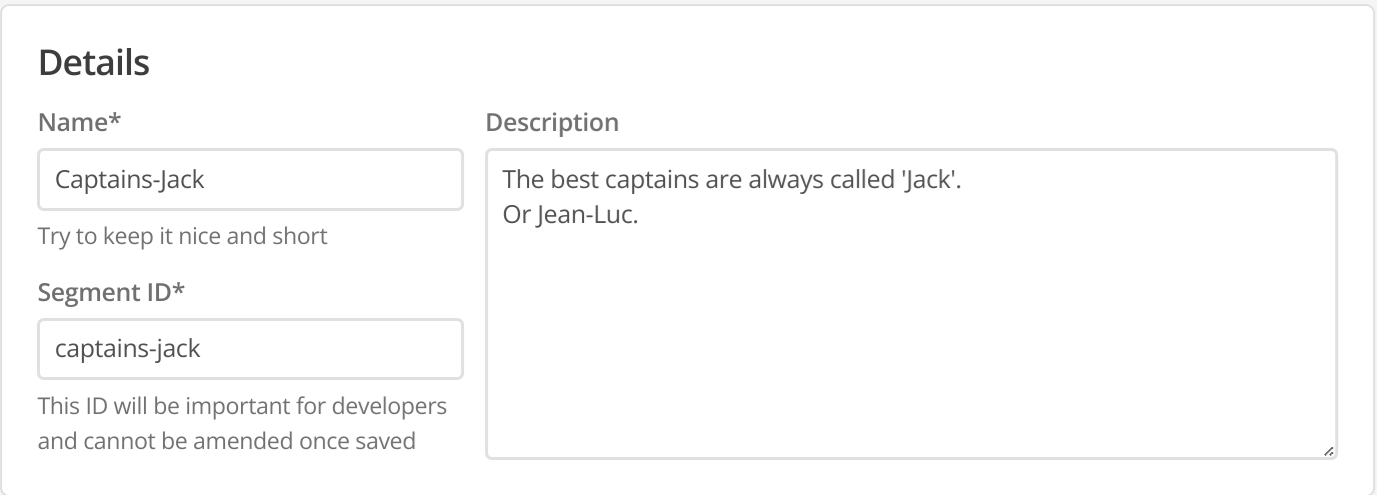
To configure the segment, supply the following information in the Details section:
-
Give the segment a short but meaningful Name.
Short names are recommended to avoid the name being cut off in configuration fields for other Squiz DXP services.
-
Review or change the Segment ID for the segment.
-
This ID will identify this segment in other DXP services.
-
It defaults to a hyphenated, all-lowercase version of the segment name.
The segment ID can only be edited during creation. It cannot be changed after the segment is saved.
-
-
-
(Optional) Provide a short description of the segment.
This information appears as guiding text wherever this segment is available, such as Page Builder personalization screens.
Choose your words carefully and avoid using potentially offensive or discriminatory language or terms when describing the segment. -
In the Rules section, set data integration or a website behavior rules depending on what segmentation goals you need for the segment.
-
When satisfied with your rule(s), click Create. You can start over by clicking Discard changes.