File manager
Introduction
The file manager is a web-based interface to manage a subset of configuration files for search packages, data sources and results page. You can:
-
edit files, and keep a backup of the original;
-
download files from the Funnelback server to your workstation;
-
delete selected files;
-
restore backup files to their original name;
-
upload files from your workstation to the Funnelback server;
Each administrative user has a series of file-manager rules that specify what files they can manage and what actions can be performed on these files. The actions are defined on a per-file (or file type) basis, so it is quite possible to be allowed to perform an action on some files, but not others. For example, you can delete backup copies of files, but not the standard Funnelback files.
Managing search package configuration files
-
Open the search package configuration screen and select Perl file manager from the settings options to open up the file manager.
Managing data source configuration files
-
Open the data source configuration screen and select Perl file manager from the settings options to open up the file manager.
Managing results page configuration files
-
Open the results page configuration screen and select Perl file manager from the settings options to open up the file manager.
File manager
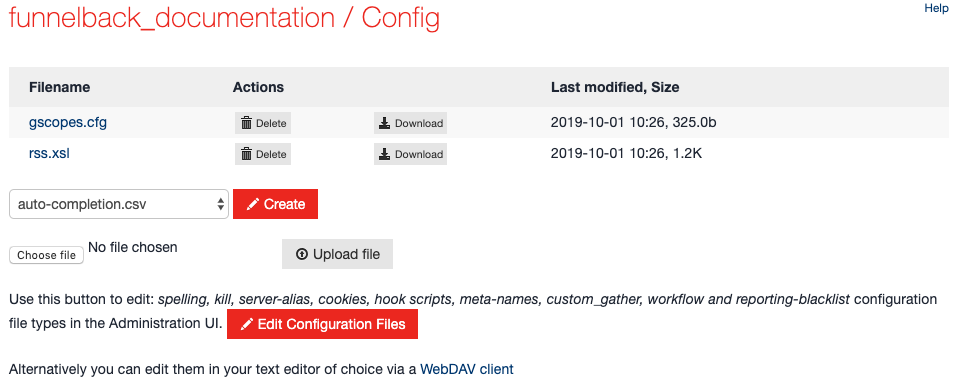
The file-manager page for a sample data source looks like the following:
Editing files
The first column of the panel is the names of the files that you can manage. If the name is a link, then this leads to the file editing page for that file.
Deleting files
If you have delete permissions, the delete link will delete the configuration file. Note that several files can never be deleted, for example the collection.cfg file.
Restoring files
Clicking on the restore link will rename a backup file to its original name, replacing the existing file with the previous copy.
Presentation files
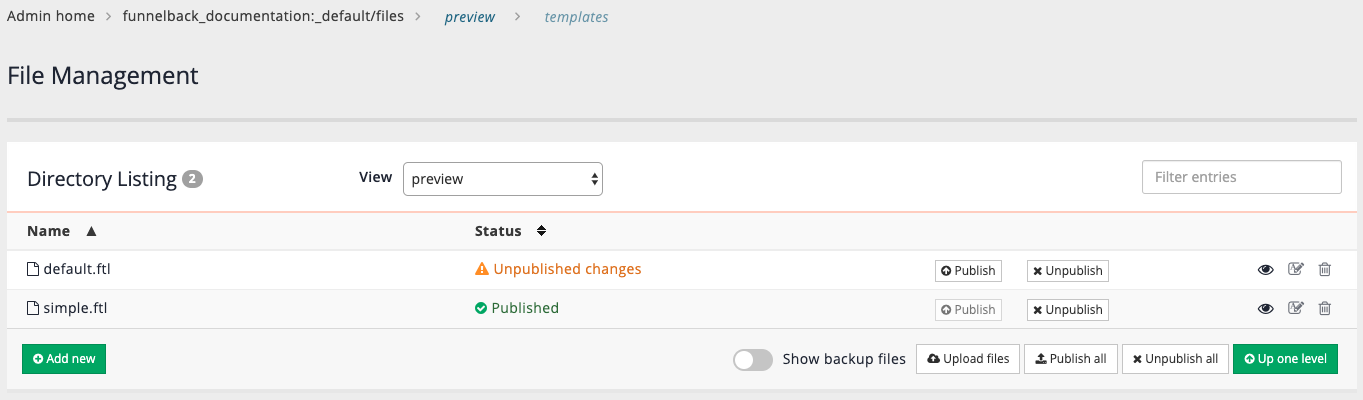
Files relating to profiles can be accessed via Customise > Edit Result Templates from
the Funnelback administration home page.
Live
Files that are currently live
Preview
Files that can be edited and previewed without affecting the live files.
The "preview" files will need to be published to move into the "live" area.
Creating new files
There are a number of optional configuration files in Funnelback that can be created if they are needed. They are listed in the "Create" drop down menu. Some example files:
external_metadata.cfg
The configuration file for external metadata.
template.xsl
the XSLT file for transforming XML-based data, such as database data sources.
Backup files
A number of file actions provide the option of keeping a backup of the original file when its replacement is created. These files are named with the original file name, plus a time stamp of yyyymmddHHMM. For example, editing the collection.cfg file generated the following files:
-rw-r--r--  1 search search    62 2006-03-08 15:40 gscopes-200603131400.cfg
-rw-r--r--  1 search search    62 2006-03-13 14:00 gscopes.cfg
You can restore the backup file whenever you want to (assuming you have permission to do so).
