All accessibility rule violations that apply to your site are shown in this interactive section.
Understanding the rule tabs
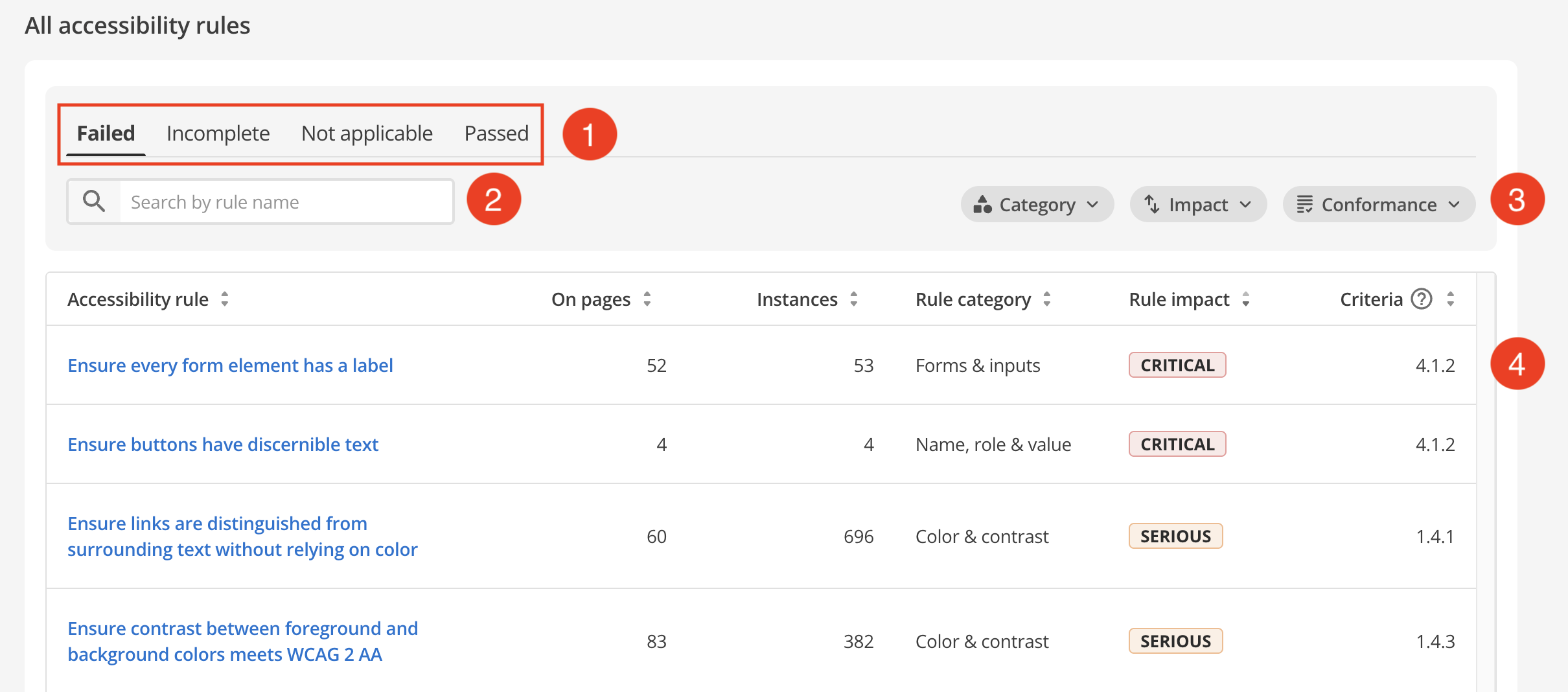
- Failed
-
Failed rules with one or more confirmed failures on your pages. The table shows how many pages each rule affects (On pages) and how many times it fails across those pages (Instances). Each rule also has an impact level, which is explained in Issue ranking and impact calculations.
- Incomplete
-
The automated checks cannot confirm whether a rule fails, so it needs human review. For example, Accessibility Auditor cannot detect captions that are built into a video rather than attached as a separate caption track. Video caption rules appear here so you can check those videos yourself.
- Not applicable
-
Rules that did not run because your pages have no content they apply to. For example, rules about dropdown menus appear here if none of your pages have a dropdown menu.
- Passed
-
Rules that ran and found no failures on your pages.
The table footer on each tab shows how many rules that tab contains.
Filtering and searching rules
You can use the interactive filtering options on the page to only show the issues within failure categories that interest you.
|
The Suggested fixes section takes a lot of the guesswork out of filtering the most impactful issues to resolve. |
-
Select these quick issue filters to explore the category that interests you the most.
-
Use the advanced column filters to sort what you see in the rules report based on combinations of available rule categories, impacts, and conformance.
-
Start typing an accessibility rule keyword (such as "title") to show all rules that contain that keyword. This approach can be helpful when your results span several pages and you want to show rule themes that appear in your audit.
-
Review rule violations and fix issues using quick fix suggestions by clicking an accessibility rule row.